
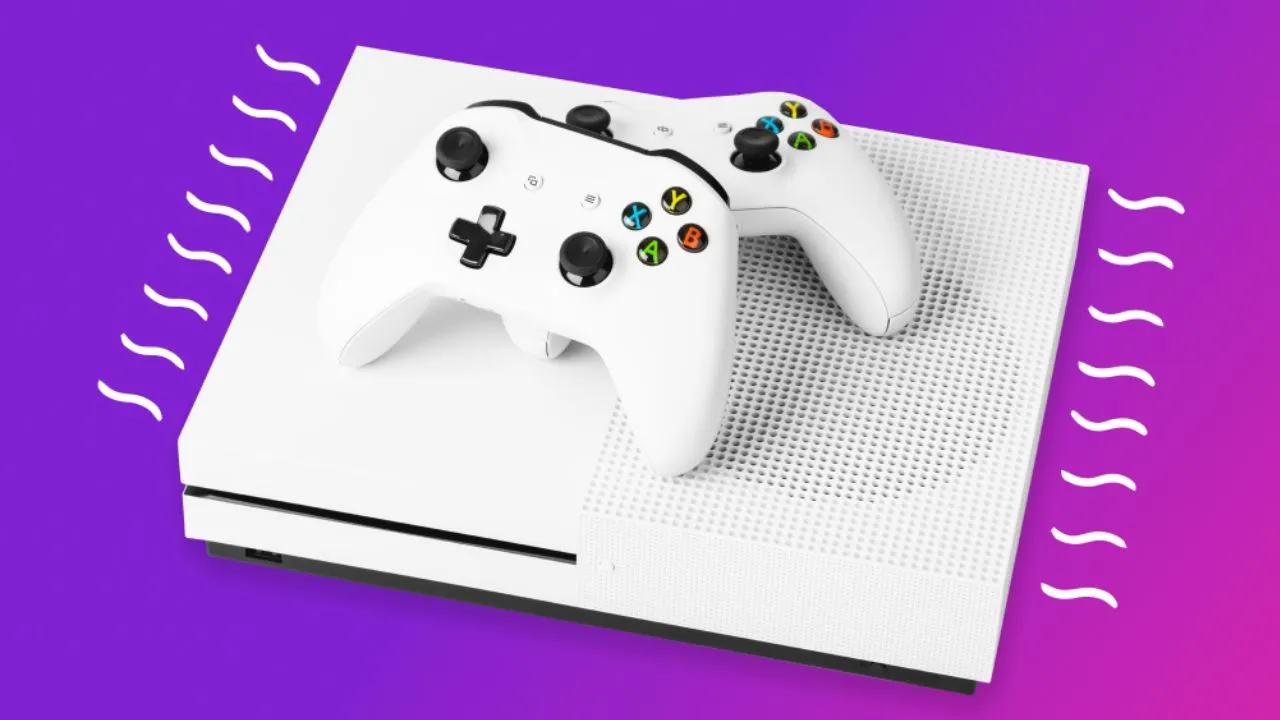
Your Xbox One is shutting down in the middle of a game. The fan sounds like a jet engine. The back of the console feels hot enough to warm a small room. You have a problem, and you need a fix that actually works.
This guide covers every real reason an Xbox One overheats and every proven way to fix it. No filler. No vague advice. Just the steps that solve the problem, written in plain language anyone can follow.
Why Your Xbox One Overheats in the First Place?
Before you fix anything, you need to understand what is happening inside the console. The Xbox One has a processor and a graphics chip that generate heat when you play games. A fan pulls air through vents on the side and back of the console, moves that air across a metal heatsink, and pushes the hot air out. Thermal paste sits between the chips and the heatsink to help heat move away from the xbox one overheating fix.
Overheating happens when any part of that chain breaks down. Dust blocks the vents. The fan stops spinning. The thermal paste dries out and stops conducting heat. The room is too hot. The console sits in a closed cabinet with no airflow. Any one of these can push the internal temperature past the safety limit, and the console shuts itself down to protect the hardware.
The good news is that almost every cause has a fix. Some take five minutes. Some take an hour and a screwdriver. All of them are doable at home.
Step 1: Check the Airflow Around Your Console
This is the first thing to check because it costs nothing and solves a surprising number of cases.
The Xbox One needs open space on all sides. Microsoft recommends at least four inches of clearance on every side, including the top. If your console sits in a closed media cabinet, inside a shelf with a door, or pressed against a wall, hot air has nowhere to go. The console pulls its own hot exhaust back in, and the temperature climbs.
Move the console to an open area. If you use a media stand, make sure the back is open and the shelf above the console has space. If you have the original Xbox One with the external power brick, keep that brick in the open too. The power brick has its own fan and its own heat problem.
Test the console for a day in this new position. If the shutdowns stop, you found the cause. If they continue, move to the next step.
Read Also: How To Reset Xbox One Controller
Step 2: Clean the Dust From the Vents
Dust is the most common cause of overheating in any console that has been used for more than a year. It builds up on the vents, on the fan blades, and on the heatsink fins inside the console. When the heatsink fins clog, air cannot pass through them, and heat stays trapped inside.
Start with the outside. Unplug the console and let it cool for at least an hour. Use a soft dry cloth or a soft brush to wipe the vents on the sides and back. Do not push dust into the console. Wipe it away.
For the vents and the visible fan area, use a can of compressed air. Hold the can upright and give short bursts. Keep the nozzle a few inches away from the console. Long bursts can spray liquid propellant onto the electronics, which you do not want.
If you have a vacuum with a brush attachment, you can gently run it over the exterior vents. Do not stick the vacuum nozzle inside the console. Static from the vacuum can damage internal parts.
This external cleaning helps, but it does not reach the dust packed inside the heatsink. For that, you need to open the console. That step comes later in this guide.
Step 3: Listen to the Fan
Turn the console on and listen. The fan should spin up smoothly as the console warms. If you hear grinding, clicking, or rattling, the fan bearing is failing. If you hear nothing at all, the fan may have stopped completely.
A failing or dead fan cannot move heat out of the console. No amount of cleaning will fix a broken fan. You need to replace it.
Replacement fans for every Xbox One model are sold online for a low price. The repair takes about thirty to forty-five minutes if you follow a teardown video for your exact model. The Xbox One, Xbox One S, and Xbox One X all have different internal layouts, so find a guide that matches your console.
If you are not comfortable opening the console, a local repair shop can replace the fan for a reasonable fee. This is a common repair, and any shop that works on game consoles has done it many times.
Step 4: Check the Power Brick (Original Xbox One Only)
The original Xbox One from 2013 uses an external power supply. That brick has its own fan and its own vents. If the brick overheats, it can cause the console to lose power or behave strangely, and it adds heat to the area around the console.
Feel the brick while the console runs. If it is too hot to touch comfortably, it needs better airflow. Move it off the carpet, out of the cabinet, and into open air. Clean its vents with short bursts of compressed air. Make sure nothing sits on top of it.
The Xbox One S and Xbox One X have the power supply built inside the console, so this step does not apply to those models.
Step 5: Open the Console and Clean the Heatsink
This is the step that fixes most overheating problems on consoles that are more than two years old. The heatsink sits deep inside the console, and dust packs into its fins over time. External cleaning cannot reach it.
You will need a few tools: a Torx T8 and T10 screwdriver, a plastic pry tool, a can of compressed air, and isopropyl alcohol with a lint-free cloth. The exact screws and steps differ between the Xbox One, Xbox One S, and Xbox One X, so watch a teardown video for your model before you start.
Once the console is open, you will see the fan and the metal heatsink. Use short bursts of compressed air to blow dust out of the heatsink fins. Do this outside or over a trash can, because a surprising amount of dust will come out. Wipe the fan blades gently with a dry cloth or a cotton swab. Do not let the fan spin freely from the air blasts, because that can damage the bearing.
While the console is open, take a close look at the thermal paste on the processor. If it looks dry, cracked, or gray and crusty, it has stopped doing its job. Replacing it is the next step.
Step 6: Replace the Thermal Paste
Thermal paste is the gray material between the processor and the metal heatsink. It fills tiny gaps and moves heat from the chip to the heatsink. Over years of use, it dries out and loses its ability to conduct heat. When that happens, the processor runs hot no matter how clean the inside of the console is.
Replacing it is the single most effective fix for an Xbox One that overheats after cleaning. It is also the step most people skip, which is why some consoles keep overheating even after a full dust cleaning.
Here is how the process works. Remove the heatsink and the clamp that holds the processor. Wipe the old paste off the processor and the heatsink with a lint-free cloth and a small amount of isopropyl alcohol. Let both surfaces dry completely. Apply a small amount of new thermal paste to the center of the processor. A pea-sized dot is enough. Do not spread it. When you press the heatsink back down, the pressure spreads the paste into a thin even layer.
Use a quality thermal paste from a known brand. Any paste sold for computer processors works fine. Reassemble the console in reverse order of the teardown.
If you have never done this kind of repair, watch a full video guide first. It is not difficult, but it does require care. Rushing or using too much force can damage the processor or the board.
Step 7: Improve the Room Temperature
The console can only cool itself down to the temperature of the air around it. If your room is hot, the console runs hot. This matters more than most people realize.
Keep the room below 80 degrees Fahrenheit while you play. If you do not have air conditioning, use a fan to move air around the console. Do not point a fan directly into the console's intake vents, because that can push dust inside faster. Instead, keep the air in the room moving so heat does not build up around the console.
Also, avoid playing for many hours in a row on a hot day. Give the console a break. Heat damage builds up over time, and short breaks help the hardware last longer.
Step 8: Check for Software Causes
Hardware is the usual cause of overheating, but software can play a role too. If a game or app has a bug that pushes the processor harder than normal, the console runs hotter. This is rare, but it happens.
Make sure your console has the latest system update. Go to Settings, then System, then Updates. Install anything that is waiting.
If the overheating started right after you installed a certain game, try uninstalling that game and playing something else for a day. If the problem stops, the game may be the cause. You can also check online to see if other players report the same issue with that game.
You can also clear the console cache. Turn off the console, unplug the power cord, wait thirty seconds, and plug it back in. This clears temporary files and sometimes resolves odd behavior.
When to Stop and Get Professional Help?
Some overheating problems are not worth fixing at home. If the console is still under warranty, do not open it. Opening the console voids the warranty, and Microsoft will not repair it for free once the seal is broken. Send it in for service instead.
If you open the console and see burn marks, swollen capacitors, or a damaged board, stop. These are signs of serious hardware failure. A repair shop can tell you if the console is worth fixing or if you should xbox one overheating fix.
If you have replaced the fan, cleaned the heatsink, replaced the thermal paste, and improved the airflow, and the console still overheats, the processor may be failing. At that point, a professional diagnosis is the right move.
You May Also Like: How To Transfer Games From Internal Storage To External Storage Pc
Frequently Asked Questions
How hot is too hot for an Xbox One?
The console is designed to run warm. The exhaust air can feel hot to the touch, and that is normal. The problem starts when the console shuts down on its own or shows a warning about overheating. That means the internal temperature passed the safety limit.
Can I use a cooling fan or stand with my Xbox One?
External cooling fans and stands that pull air away from the console can help a little, but they do not fix the real problem. If the inside of the console is clogged with dust or the thermal paste is dried out, no external fan will solve it. Fix the inside first, then use a stand if you want extra airflow.
How often should I clean my Xbox One?
Clean the outside vents every few months with a dry cloth or short bursts of compressed air. Open the console for a deep clean every one to two years, depending on how dusty your home is. Homes with pets or smokers need more frequent cleaning.
Does vertical or horizontal placement matter?
Both positions are safe as long as the vents have clearance. The important thing is open space around the console. Do not stand the console on carpet, and do not block the side vents with anything.
Will replacing the thermal paste void my warranty?
Yes. Opening the console voids the warranty. If your console is still under warranty, send it to Microsoft instead of opening it yourself.
Why does my Xbox One overheat only during certain games?
Some games push the hardware harder than others. A demanding game makes the processor work harder, which makes more heat. If the console's cooling is already weak from dust or dried paste, a heavy game is the one that pushes it over the limit. The fix is the same: clean the inside and replace the thermal paste.
Final Thoughts
An overheating Xbox One is almost always fixable. Start with the simple steps: improve airflow, clean the vents, and check the fan. If the problem continues, open the console, clean the heatsink, and replace the thermal paste. Those two steps solve the majority of cases that survive a basic cleaning.
Do the work carefully, use the right tools, and follow a teardown guide for your exact model. Your console will run cooler, quieter, and longer. And you will get back to playing without watching the clock, waiting for the next shutdown.