
If your Xbox One feels slow or games are not running smoothly, you are not alone. Many players face this problem. The good news is that you can fix most performance issues by changing a few settings and doing some simple maintenance. This guide will walk you through every step to make your Xbox One run like xbox one best settings for performance.
Why Your Xbox One Might Be Running Slow?
Before we get to the fixes, it helps to know what causes the problem. Your Xbox One can slow down for several reasons.
One common cause is a full hard drive. When your storage space gets low, the console has trouble finding and loading game data quickly . Another reason is the cache. The cache holds temporary files to help games load faster. But over time, these files can get cluttered or corrupted, which slows everything down .
Background apps also eat up system resources. If you have many apps running in the background, they take away power that your games need . Your internet connection matters too. A weak Wi-Fi signal or slow network speed can cause lag and make games feel unresponsive .
Heat is another problem. Dust in the vents can cause the console to overheat. When that happens, the system slows down to protect itself from damage .
Read Also: How To Optimize Windows For Gaming
Basic Settings To Improve Performance
Let us start with the simple changes. These settings take just a few minutes to adjust but make a big difference.
Power Settings
Your Xbox One has different power modes. The default mode keeps the console in a low-power state so it turns on faster. But this mode can slow down performance over time because the system never fully resets .
To change this, go to Settings > Power & startup. Select Energy-saving mode. This fully shuts down the console when you turn it off. When you start it back up, the system clears out temporary files and refreshes its memory. This gives you a clean start every time you play .
Display Settings
Some games struggle to run smoothly at high resolutions. If you notice frame drops or stuttering, try lowering the display settings.
Go to Settings > Display & sound. You can adjust the resolution and refresh rate here. Lowering these settings reduces the work your console has to do. The game may not look as sharp, but it will run much smoother .
Many modern games give you a choice between two modes. You can pick performance mode or quality mode. Performance mode lowers the graphics quality to give you a higher frame rate. Quality mode makes the game look better but runs slower. Always choose performance mode for the best gameplay experience .
Cleaning And Maintenance Steps
Physical maintenance is just as important as software settings. Dust and dirt can hurt your console's performance.
Clean The Vents
Over time, dust builds up in the vents of your Xbox One. This blocks airflow and causes overheating. When the console gets too hot, it slows down to prevent damage .
To clean the vents, turn off and unplug your console. Use a can of compressed air to blow out any dust from the vents . Do not use a vacuum cleaner, as it can create static electricity that damages the internal parts.
Let the console cool down for at least 30 minutes if it feels hot to the touch. Make sure you place it in a well-ventilated area. Do not put it in a closed cabinet or on a soft surface like a carpet .
Clear The Cache
Clearing the cache removes old temporary files that can cause lag and other problems . This is one of the most effective fixes for a slow Xbox One.
To clear the cache:
-
Press and hold the power button on the front of the console until it turns off completely
-
Unplug the power cord from the back of the console
-
Press the power button several times while the console is unplugged. This drains any leftover power
-
Wait for one minute
-
Plug the power cord back in
-
Wait another minute before turning the console back on
This process clears the cache and refreshes the system. Your saved games and achievements are safe and will not be affected .
Manage Storage And Free Up Space
A full hard drive is one of the biggest reasons for slow performance. When your storage is nearly full, the console struggles to load games and manage files .
Delete Unused Games And Apps
Go to My Games & Apps. Look through your library and find games you no longer play. Select the game, press the Menu button on your controller, and choose Manage game. From there, you can uninstall the game .
Do not worry about losing your progress. Your saved data is stored in the cloud. If you reinstall the game later, your saves will come back automatically when you log in .
Use An External Hard Drive
If you have many games you want to keep, consider using an external hard drive. This frees up space on the internal drive and can even improve loading times .
Plug an external USB 3.0 hard drive into your Xbox One. The console will detect it and ask if you want to use it for games and apps. Choose yes, and you can move games to the external drive from the storage settings .
Close Background Apps
Apps running in the background use up system resources. They take memory and processing power away from your game. Closing these apps can make a noticeable difference .
To close background apps:
-
Press the Xbox button on your controller to open the guide
-
Scroll to the app you want to close
-
Press the Menu button on your controller
-
Select Quit
Do this for any app you are not actively using. This includes streaming apps, music players, and social apps.
Network Settings For Smoother Online Play
If you play games online, your internet connection is critical. A slow or unstable connection causes lag and ruins the experience.
Use A Wired Connection
Wi-Fi is convenient, but it is not always stable. Walls, other devices, and distance from the router can all weaken the signal. An Ethernet cable gives you a direct, stable connection to your xbox one best settings for performance.
Plug one end of the cable into the back of your Xbox One and the other end into an available port on your router. This provides the fastest and most reliable connection for online gaming .
Change Your DNS Settings
Your DNS server translates website names into IP addresses. The default DNS from your internet provider may not be the fastest. Changing to a public DNS server can speed up how your Xbox connects to game servers .
To change DNS settings:
-
Go to Settings > General > Network settings
-
Select Advanced settings
-
Choose DNS settings and select Manual
-
Enter a primary and secondary DNS address
You can use these free and fast DNS servers:
-
Primary: 8.8.8.8 (Google)
-
Secondary: 1.1.1.1 (Cloudflare)
Check Your Network Speed
You can test your internet speed directly on the Xbox One. Go to Settings > General > Network settings and select Test network speed & statistics .
For online gaming, you need at least 3 Mbps download speed and 0.5 Mbps upload speed. Your ping should be under 150 milliseconds. Lower ping means less lag .
If your speeds are too slow, try restarting your modem and router. Move the Xbox closer to the router if you are using Wi-Fi. Reduce the number of devices connected to your network while gaming .
You May Also Like: Pc Games For Laptops Without Graphics Card
Optimize Your Monitor Or TV Settings
Your display can also add lag. Many TVs add extra processing to make the picture look better. This processing takes time and creates input lag .
Enable Game Mode
Most modern TVs have a Game Mode. This turns off extra image processing and reduces input lag .
Look in your TV's picture settings and find Game Mode or Low Latency Mode. Turn it on. The picture may look slightly different, but the responsiveness will be much better .
If you are using a monitor, check the on-screen menu for a gaming or low-latency mode. Enable it for the best experience .
Advanced Performance Tips
If you have tried all the steps above and still have issues, these advanced tips may help.
Update Your Console And Peripherals
Microsoft releases updates that fix bugs and improve performance. Keeping your system up to date is important for smooth gameplay .
Check for updates by going to Settings > System > Updates & downloads. Select Update console if a new update is available .
Do not forget to update your controller too. Go to Devices & connections > Accessories, select your controller, and follow the prompts to update .
Restart Your Console Regularly
Restarting your Xbox One clears out temporary data and refreshes the system. It is a simple fix that solves many performance problems .
To restart properly, press and hold the Xbox button on the front of the console for 10 seconds. The console will power off completely. Wait a moment, then press the button again to turn it back on.
Do this once a week to keep your console running smoothly.
Reset Network Settings
If you have changed many network settings and things are not working well, you can reset everything to default.
Go to Settings > System > Network settings. Find the option to restore network settings to factory defaults. This clears any problematic changes and gives you a fresh start .
Keyboard And Mouse Settings
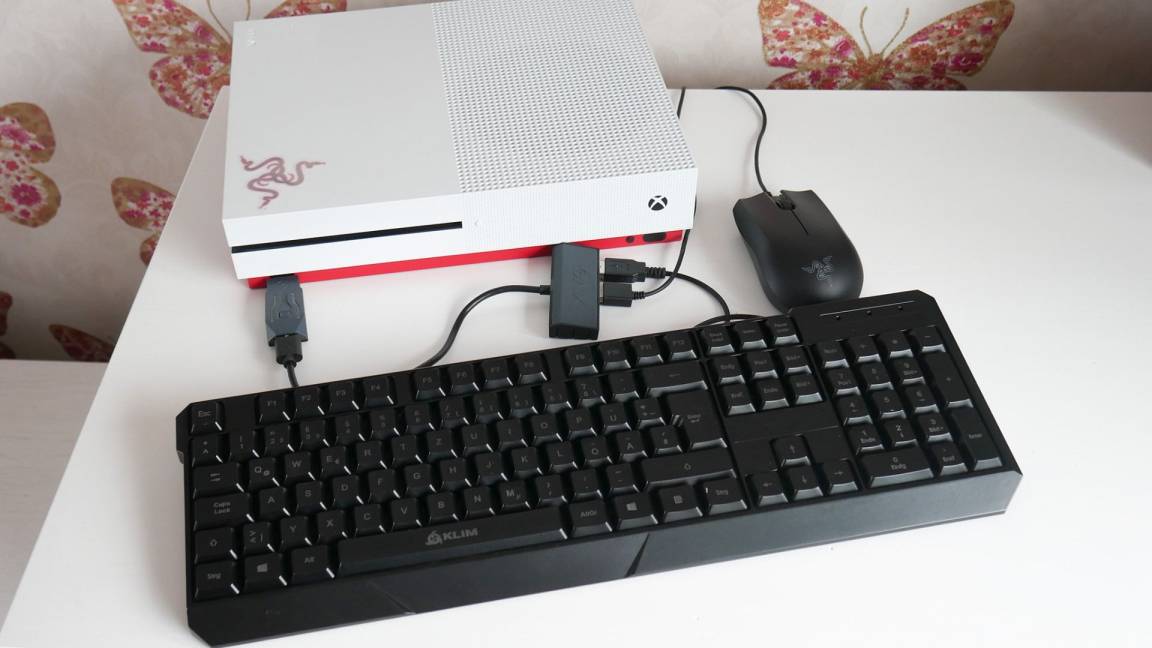
If you use a keyboard and mouse with your Xbox One, there are special settings to optimize performance.
Some games have input lag when you use keyboard and mouse. To fix this, you can adjust the polling rate of your mouse. A lower polling rate can reduce visible lag .
On PC, use the software for your mouse brand to change the polling rate. Set it to 125Hz or 8ms for the best compatibility with Xbox One games .
Keep your keyboard and mouse firmware updated. Manufacturers release updates that improve compatibility and performance .
Putting It All Together
Let us summarize everything you need to do for the best Xbox One performance.
Do these right away:
-
Change power settings to Energy-saving mode
-
Clean the dust from vents
-
Clear the cache
Every week:
-
Restart your console by holding the power button
-
Check for system and game updates
Manage your storage:
-
Delete games you no longer play
-
Use an external hard drive for extra space
Improve your network:
-
Use an Ethernet cable instead of Wi-Fi
-
Change DNS to a public server
-
Test your internet speed regularly
Check your display:
-
Enable Game Mode on your TV or monitor
-
Choose performance mode in games when available
These steps cover everything from basic maintenance to advanced settings. Following them will make your Xbox One run faster, smoother, and more reliably.
Frequently Asked Questions
Why does my Xbox One lag even with good internet?
Lag can happen even with good internet if the cache is full, the hard drive is nearly full, or background apps are running. Try clearing the cache and closing background apps .
Will clearing the cache delete my games?
No. Clearing the cache only removes temporary files. Your games, saves, and achievements stay safe .
How do I know if my Xbox One is overheating?
If the console feels hot to the touch, the fans are loud, or you see a warning message on screen, it may be overheating. Clean the vents and move the console to a well-ventilated area .
What internet speed do I need for Xbox One gaming?
You need at least 3 Mbps download speed and 0.5 Mbps upload speed. Your ping should be under 150 milliseconds .
Is Energy-saving mode better than Instant-on mode?
Energy-saving mode is better for performance because it fully shuts down the console. This clears temporary files and gives you a fresh start when you turn it back on .