
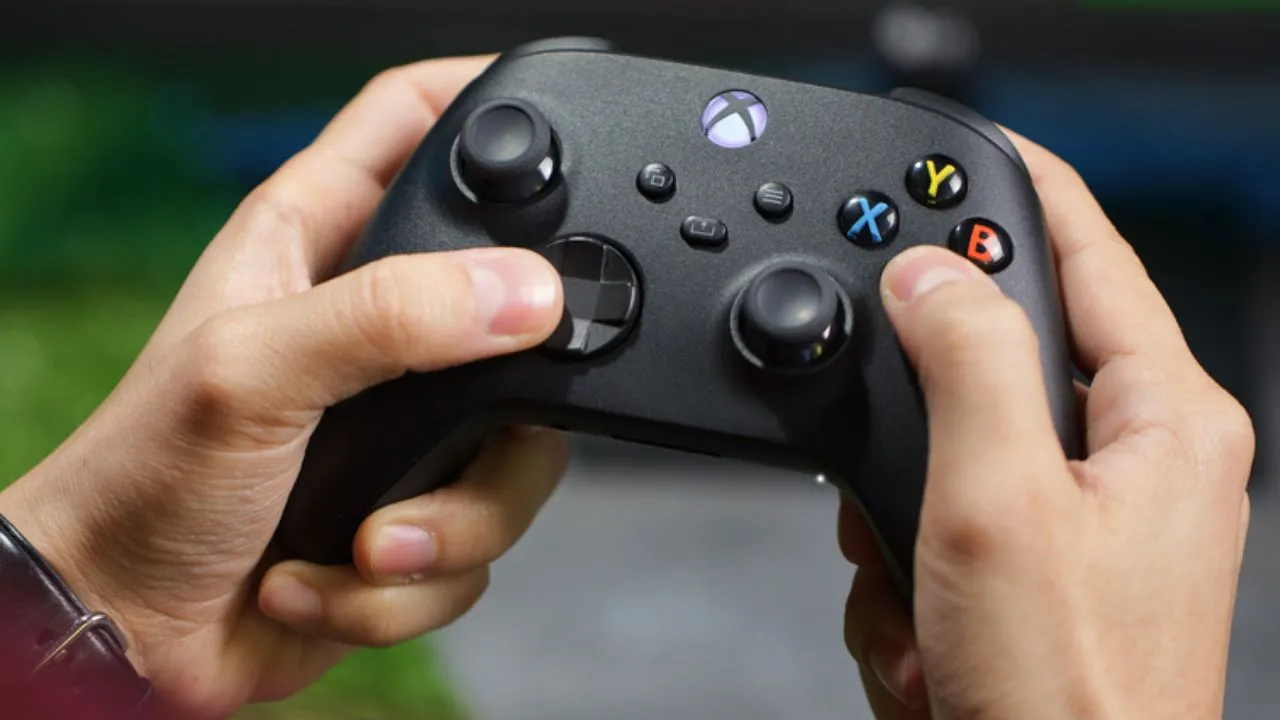
When your Xbox One controller stops responding, it feels like the console itself is broken. You press buttons and nothing happens. The light blinks but the connection never settles. Games that worked yesterday suddenly refuse to acknowledge your input. Before you buy a new controller or send your console for repair, there is a simpler answer. In most cases, your controller does not need replacing. It needs resetting.
This guide walks through every method for resetting an Xbox One controller. It explains what each method actually does, when to use it, and what to do if the standard steps fail. By the end, you will know exactly how to bring your controller back to working condition without wasting money on parts you do not need.
What Resetting an Xbox One Controller Actually Means?
People use the word "reset" loosely when talking about controllers. In practice, there are three different actions that all get called resetting, and they do different things.
A power cycle turns the controller off and back on. It clears temporary memory and forces the controller to reestablish its connection with the console. This is the mildest form of reset and the first thing you should try.
A hard reset removes power from the controller entirely by taking out the batteries or disconnecting the charging cable. This clears any stored charge and forces a complete restart of the controller's internal systems.
A factory reset wipes all custom settings. If you changed button mappings, adjusted stick sensitivity, or created custom profiles, a factory reset erases all of it and returns the controller to how it shipped from the factory.
Understanding the difference matters because you should always start with the gentlest option. There is no reason to wipe your custom settings if a simple power cycle fixes the problem.
Read Also: Best Xbox One Games For Adults
When Should You Reset Your Xbox One Controller?
Resetting helps with specific problems, not every problem. Knowing when to reset saves time and prevents unnecessary frustration.
You should reset your controller when it will not sync with the console even after normal pairing attempts. The controller may show a blinking light that never becomes solid, or the console may not recognize the controller at all.
You should reset when the controller works on one device but not another. If it pairs with your PC but refuses to connect to your Xbox, the problem is likely a stored connection that needs clearing.
You should reset when buttons stop responding mid-game. A controller that freezes or drops inputs randomly often has a temporary software glitch that a power cycle will fix.
You should reset when the controller will not charge properly. Sometimes the charging circuit gets stuck in a state where it thinks the battery is full when it is not.
You do not need to reset for normal wear and tear. Stick drift, worn-out buttons, and physical damage will not be fixed by resetting. Those require repair or replacement.
Method One: Power Cycle Your Controller
This is the simplest reset and the one you should always try first.
Turn on your Xbox One console. Pick up your controller and press and hold the Xbox button in the center for about ten seconds. The controller will turn off. Release the button and wait a few seconds.
Press the Xbox button again to turn the controller back on. Watch the light. It should blink for a moment and then become solid when it reconnects to the console.
If the light keeps blinking and never becomes solid, the controller is searching but cannot find the console. Move closer to the console and try again. If it still will not connect, move to the next method.
This method works because the controller stores a small amount of connection data in temporary memory. Holding the power button clears that memory and forces the controller to start fresh. It is the equivalent of restarting your phone when an app freezes.
Method Two: Hard Reset by Removing Power
If the power cycle does not work, remove power from the controller completely.
For a controller with AA batteries, turn the controller off first by holding the Xbox button for ten seconds. Then slide open the battery compartment on the back and take the batteries out. Wait at least thirty seconds. This wait matters because it gives the controller's internal capacitors time to drain completely.
Put the batteries back in. Make sure they go in the right direction. Close the battery cover. Press the Xbox button to turn the controller on and let it try to connect.
For a controller with a built-in rechargeable battery, you cannot remove the battery. Instead, unplug the charging cable if one is connected. Then hold the Xbox button for fifteen seconds until the controller shuts down. Wait thirty seconds and turn it back on.
This method is more thorough than a simple power cycle because it removes all power from the controller's memory chips. Sometimes a controller gets stuck in a state where it remembers a connection that no longer exists. Removing power forces a complete memory clear.
Method Three: Reset Through the Xbox Accessories App
This method resets the controller's settings, not its connection. Use this when the controller connects fine but does not behave the way you want.
Press the Xbox button on your controller to open the guide. Navigate to Settings. Select Devices and connections, then Accessories. Your connected controller will appear on the screen. Select it.
Look for an option that says Restore to default or Reset to factory settings. The exact wording depends on your console's current software version. Select it and confirm.
This erases every custom setting you have made. Button remaps, stick sensitivity adjustments, and saved profiles all disappear. The controller returns to how it worked when you first took it out of the box.
You should only use this method when you actually want to wipe your settings. If your problem is connection-related, this will not help. If your problem is that your controls feel wrong because you or someone else changed the mapping, this fixes it immediately.
Method Four: Resync the Controller After Resetting
Sometimes a reset clears the connection but the controller does not automatically pair again. You need to resync manually.
Turn on your Xbox One console. Press the Xbox button on the controller to turn it on. On the console, find the Pair button. On the original Xbox One, this button is on the left side near the disc slot. On the Xbox One S and Xbox One X, it is on the front near the USB port.
Press the Pair button on the console. The console's light will start blinking. Within twenty seconds, press and hold the Pair button on the top of the controller. The controller's Xbox button will flash rapidly. When both lights become solid, the connection is established.
If the controller still will not sync, connect it directly to the console using a USB cable. The original Xbox One controller uses micro-USB. Newer controllers use USB-C. Plug the cable into the controller and the console. The controller will connect through the wire and often stays paired wirelessly after you unplug it.
The wired connection forces the console and controller to talk to each other. This bypasses whatever wireless problem was preventing the connection. Once they communicate through the cable, the wireless pairing often works again.
Method Five: Reset Through the Console
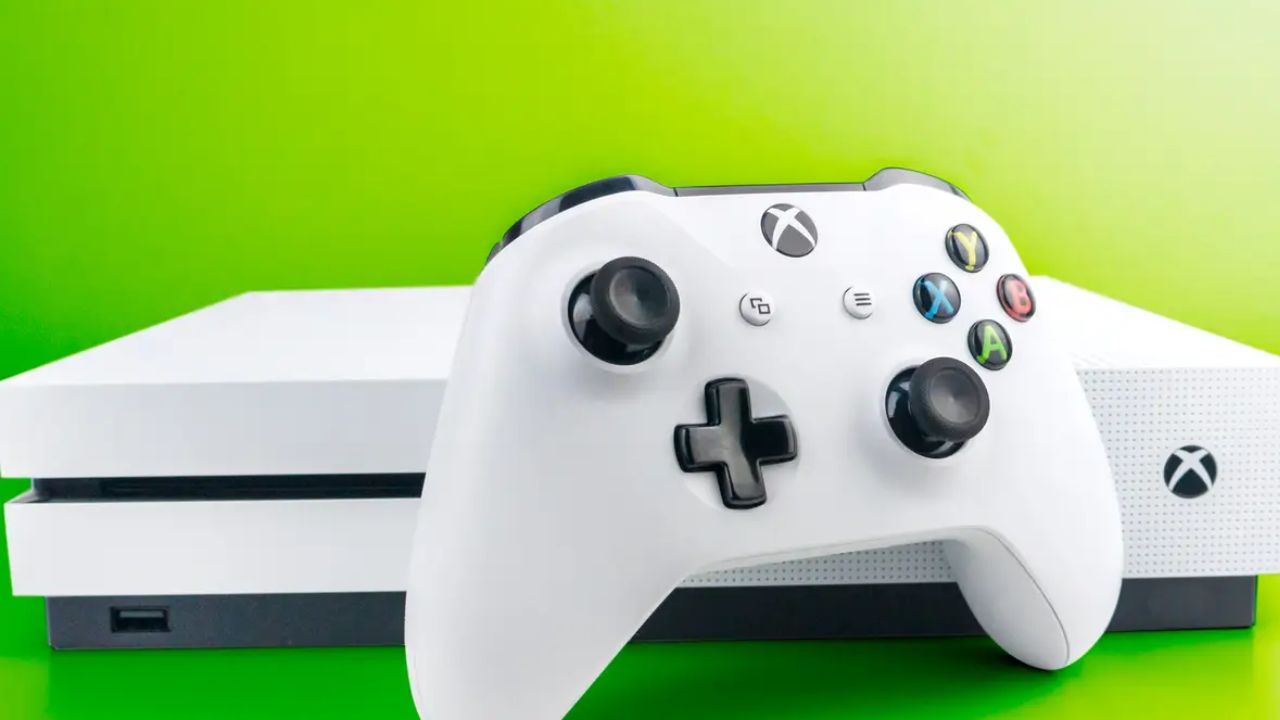
If the controller will not respond at all, you cannot use it to navigate menus. In that case, reset the console itself.
Press and hold the power button on the front of the Xbox One console for ten seconds. The console will shut down completely. Wait a few seconds. Press the power button again to turn it back on.
Once the console restarts, try turning on your controller and letting it connect. A console restart clears the console's Bluetooth and wireless connection memory. If the console was holding onto a corrupted connection profile, restarting forces it to rebuild that profile from scratch.
This does not erase any games, saves, or console settings. It is safe to do anytime and often fixes controller problems that the controller itself cannot solve.
You May Also Like: How To Transfer Games From Internal Storage To External Storage Pc
What to Do If Resetting Does Not Fix the Problem?
Resetting solves many controller problems, but not all of them. If you have tried every method above and the controller still does not work properly, the issue may be elsewhere.
Check the batteries. Weak batteries cause more controller problems than anything else. The controller may turn on but struggle to maintain a wireless connection. Replace the batteries with fresh ones or charge the battery pack fully. This costs almost nothing and eliminates the most common cause of connection issues.
Update the controller firmware. Outdated firmware causes sync failures and button problems. Connect the controller to the console with a USB cable. Go to Settings, then Devices and connections, then Accessories. Select your controller and look for an option to check for firmware updates. If an update is available, install it.
Try a different USB cable. If you are trying to connect with a wire and the controller does not respond, the cable may be damaged. USB cables break internally even when they look fine on the outside. Try a different cable that you know works with other devices.
Test the controller on another device. Connect your controller to a PC using Bluetooth or a USB cable. If it works perfectly on the PC but not on the Xbox, the problem is with your console, not the controller. If it fails on both devices, the controller itself has a hardware problem.
Check for wireless interference. Other wireless devices near your console can disrupt the controller's signal. Move other wireless devices away from the console and controller. Test again. This is rare but possible if you have many wireless devices packed into a small space.
Look at the controller's physical condition. If buttons feel sticky, if the controller has been dropped, or if liquid spilled on it, the problem is physical. Resetting will not fix physical damage. You need a repair or a replacement.
Frequently Asked Questions
Does resetting an Xbox One controller delete my game saves?
No. Game saves are stored on the console or in the cloud, not on the controller. Resetting the controller has no effect on your games or progress.
How long should I wait after removing batteries?
At least thirty seconds. This gives the controller's internal components time to lose all stored power. Waiting longer does not hurt.
Can I reset a controller that will not turn on?
You can try removing the batteries and waiting, then putting them back in. If the controller does not turn on after that, it likely has a hardware failure or completely dead batteries. Try fresh batteries before assuming the controller is broken.
Will resetting fix stick drift?
No. Stick drift is a physical problem with the analog stick mechanism. Resetting clears software and connection issues, not worn-out hardware.
Do I need to reset both the controller and the console?
Not usually. Start with the controller. If that does not work, reset the console. Doing both at the same time makes it harder to know which one actually fixed the problem.
Final Thoughts
A controller that will not connect is frustrating, but it is almost never a reason to buy a new one. Start with a power cycle. If that fails, remove the batteries and wait. If the connection is the problem, resync. If the settings are the problem, use the Accessories app to restore defaults.
Most controller problems come down to three things: dead batteries, a corrupted connection stored in memory, or outdated firmware. Resetting addresses the second one. The other two have simple fixes too.