
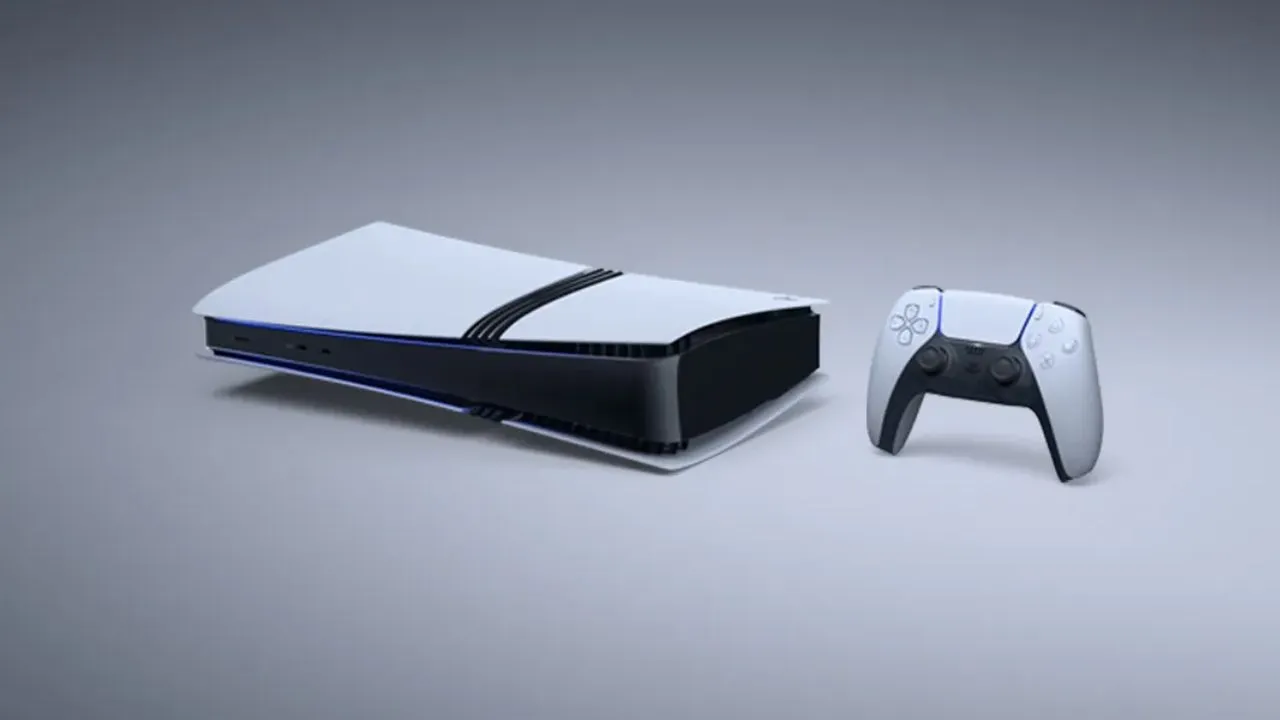
Moving your data from an old PS5 to a new PS5 Pro is a simple job, but the size of your game library means it can take a while. Using a LAN cable is the fastest way to do it, and the steps below will walk you through the whole process from start to finish. You do not need to be a tech expert to get this done. The console does most of the work for you once you start the transfer.
What You Need Before You Start?
Before you touch any cables, there are a few things you should check on both consoles. First, make sure your old PS5 has the latest system software installed. Sony recommends updating the old console before you begin the transfer . You should also sync your trophy information on the old console so your trophy list carries over correctly .
You need to sign in to your PlayStation Network account on both the old PS5 and the new PS5 Pro. This is required because the transfer moves user information tied to your account . Finally, both consoles need to be connected to the same network. You can use Wi-Fi, but a LAN cable will make the process much faster .
Connect the LAN Cable
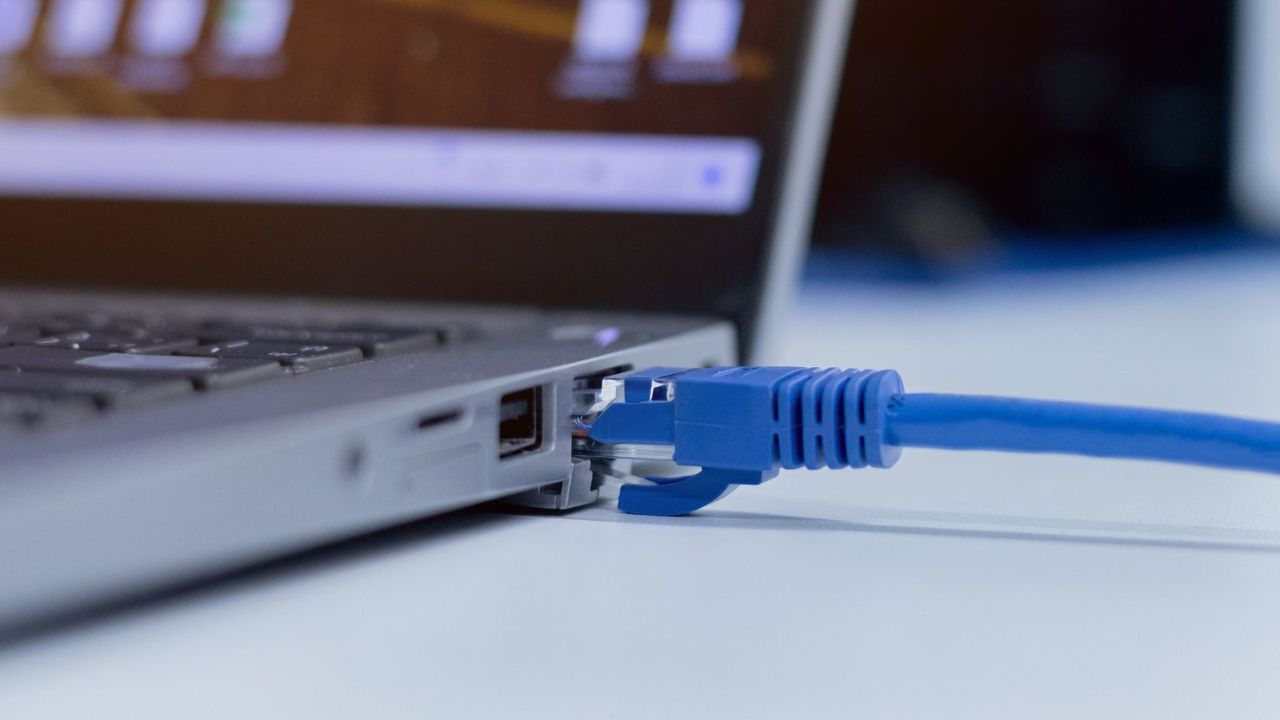
The PS5 Pro will actually recommend a wired connection once you start the transfer process. A LAN cable connection speeds things up compared to Wi-Fi . You have two ways to set this up.
The first option is to connect both consoles to your router using separate LAN cables. This keeps both machines on the same home network and gives you a stable connection. The second option, which some users prefer, is to connect the two consoles directly to each other with a single LAN cable. This direct link can work without involving your router, though you may still need the consoles to recognize each other through the how to transfer data from ps5 to ps5 pro with lan cable .
If you do not have a LAN cable or cannot reach your router, you can still do the transfer over Wi-Fi. Just know that it will be slower, and the console will warn you about this .
Read Also: How To Fix Ps4 Overheating Problem
Start the Transfer on the PS5 Pro
Turn on both consoles and make sure they are both connected to power. On the new PS5 Pro, go to the home screen and select the settings gear icon in the top right corner. Scroll down to System, then select System Software. From there, choose Data Transfer and select Continue .
The PS5 Pro will begin searching for your other console on the network. When your old PS5 appears on the screen, select it. If the Pro asks you to confirm the connection on the old console, follow the prompt. Some users have reported that you may need to press the power button on the old PS5 briefly when prompted, but this step varies depending on your setup .
Choose What to Transfer
Once the two consoles are connected, the PS5 Pro will show you a list of content you can move over. The data is split into three sections: User Data, Games and Media, and Console Settings .
User Data includes things like save files, screenshots, and video clips. Games and Media is usually the largest section because it contains all your installed games. Console Settings covers your preferences and system configurations. You can choose to transfer all three, or you can uncheck sections if you do not need them. For example, if you plan to re-download your games later, you might skip the Games section to save time.
The screen will show an estimate of how long the transfer will take. In one test, transferring around 800 gigabytes of data over a LAN cable was estimated at just under two hours . Your time will depend on how much data you have and the speed of your network equipment.
What Happens During the Transfer?
After you confirm your selections, the transfer begins. The PS5 Pro will eventually put itself into sleep mode after the first progress bar. You can leave it in sleep mode while the data moves over. However, you must leave the old PS5 turned on. It cannot be put into rest mode during the transfer .
You can turn the PS5 Pro back on to check the progress if you want. When the process finishes, the old console will put itself to sleep automatically . After the transfer is complete, you can start using your PS5 Pro. Some data, like game files, may continue downloading or installing in the background even after the console restarts, so you might see games become ready to play one by one .
You May Also Like: How To Transfer Ps4 Data To Ps5 Step By Step
A Faster Option for Your Games
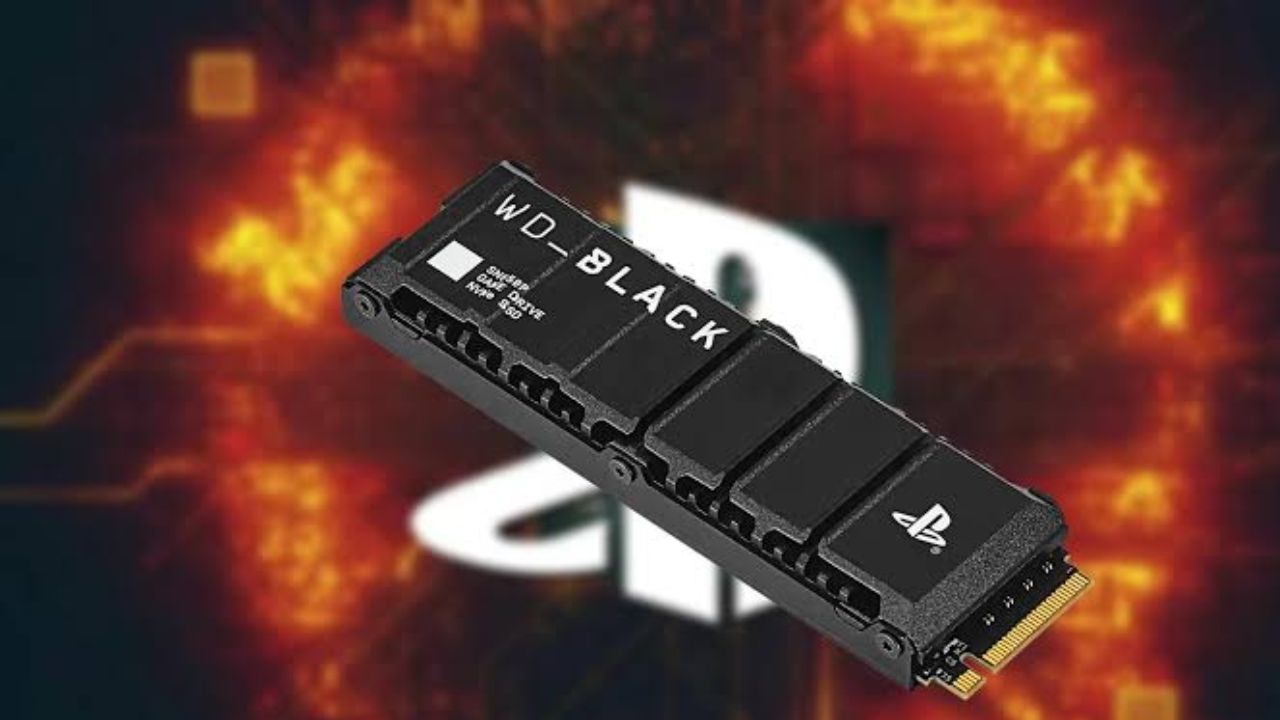
If you have an M.2 SSD installed in your old PS5, there is a shortcut that can save you a lot of time. You can physically remove the M.2 SSD from your old PS5 and insert it into your PS5 Pro . Games stored on that drive will be available on the new console without needing to be transferred over the network at all. This can cut your transfer time significantly if most of your games live on an expanded drive.
Just remember that this only moves the games on that specific drive. Your save files, screenshots, and console settings still need to come over through the network transfer or how to transfer data from ps5 to ps5 pro with lan cable .
Common Issues and Fixes
A few things can go wrong during the transfer, but most of them have simple solutions. If the PS5 Pro cannot find your old console, check that both are connected to the same network and that you are signed in to PSN on both machines. If the connection drops or the transfer fails, restarting both consoles and trying again often helps.
Some users have run into error codes during the process. If that happens, one workaround is to transfer your save files and media to a USB drive instead, then move the M.2 SSD to the new console for your games . This splits the job into two smaller tasks and can bypass network issues.
Sony also released a system software update that improved the stability of data transfers between consoles, so make sure your PS5 Pro is updated before you start .
After the Transfer
Once everything is moved over, take a few minutes to check that your save files are present and your games launch correctly. You should also re-pair your DualSense controllers to the new console by connecting them with a USB cable and pressing the PlayStation button . Your old PS5 can now be reset or kept as a backup, but keep in mind that your PSN account will now treat the PS5 Pro as your primary console for game sharing purposes .
The whole process is mostly waiting. With a LAN cable and a little patience, your new PS5 Pro will be set up exactly like your old console, and you can get back to playing without losing your progress.