

Your PS4 sounds like a jet engine taking off. The fan runs at full speed even when you are sitting in the menu. Then, without warning, the screen goes black and the console shuts itself off. A red light blinks on the front of the machine.
That blinking red light is not a vague warning. It is the PS4 telling you one specific thing: the console has crossed its internal temperature limit and shut down to protect the hardware from damage. Sony designs the system to operate between 41°F and 95°F, and when the internal sensors register too much heat, the safety cutoff kicks in .
The good news is that most overheating problems come from a small number of causes. Some you can fix in five minutes without any tools. Others require opening the console, but they are still manageable if you are careful. This guide walks through every realistic fix, ordered from the simplest check to the most involved repair, so you can stop the shutdowns and get back to playing.
First, Confirm It Is Actually Overheating
Not every crash or fan noise means the console is overheating. A game can freeze for reasons unrelated to heat, and a loud fan is not always a sign of ps4 overheating problem.
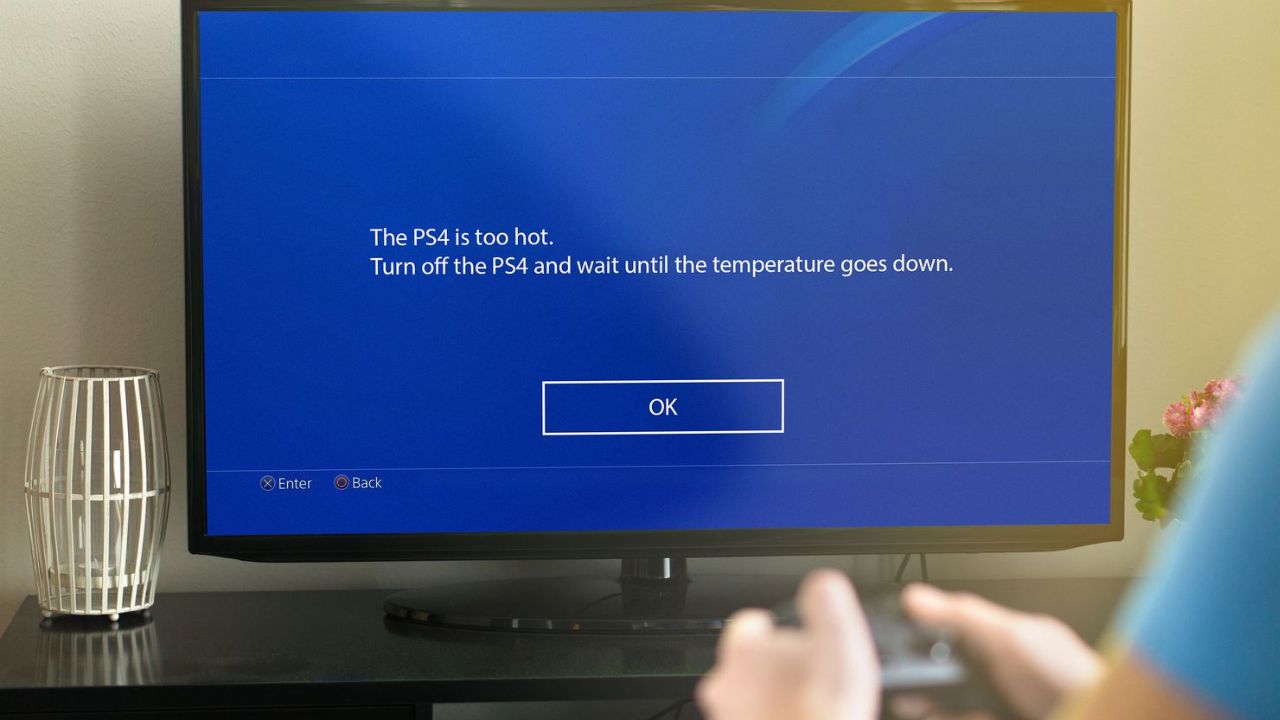
The definitive sign is the warning screen. When a PS4 genuinely overheats, it displays a message on your TV telling you the system is too hot before it shuts down. If your console turns off without that warning, the problem is likely something else, such as a power issue or a software crash .
The blinking red light is the other clear indicator. A solid white light means the system is on. A pulsing blue light means it is starting up or in rest mode. A blinking red light means heat .
If you see either the warning message or the red light, proceed with the fixes below. If you are dealing with random shutdowns and no warning at all, start by testing the console in a different outlet and trying a different power cable before assuming heat is the culprit.
Read Also: Best Ps4 Games For Solo Players
Give the Console Room to Breathe

The most common mistake people make with a PS4 is stuffing it into a cramped TV stand or pushing it against a wall. The console pulls cool air in through the side vents and pushes hot air out the back. If any of those paths are blocked, heat builds up inside the case no matter how clean the interior is.
Pull the console out of any enclosed cabinet. Place it on a hard, flat surface. Fabric surfaces like carpet or a blanket will trap heat and should be avoided entirely. Leave at least four inches of clear space on every side, especially the back where the exhaust vent sits.
Check the room temperature as well. A small bedroom with a closed door and a running gaming PC can easily climb above 90°F. If the room feels warm to you, the PS4 is pulling that warm air into its cooling system. A fan or an open window makes a bigger difference than most people realize.
Clean the Vents and Fan
Dust is the slow killer of every console. It coats the fan blades, reducing their ability to move air. It clogs the fins of the heatsink, the metal radiator that actually dissipates heat away from the processor. Once those fins are packed with dust, the fan can spin as fast as it wants and still fail to cool anything.
Start with the outside. Unplug the console and use a soft brush or a vacuum with a brush attachment to clear dust from the side vents and the back exhaust. Do not spray compressed air directly into the vents from close range. That can push dust deeper into the machine rather than removing it, and the propellant in some cans leaves residue.
For a deeper clean, you need to open the console. The original PS4 and the PS4 Pro require removing the top cover and then the internal metal plate to reach the fan and heatsink. The PS4 Slim is easier: the top cover pops off with a bit of careful prying, and the fan is immediately accessible .
Once you have the fan exposed, hold it still with your finger and blow air through the heatsink fins from the inside out. If you spin the fan with compressed air without holding it, you can overspeed the bearing and damage it. A soft paintbrush works well for loosening caked-on dust from the blades.
Check the Fan Itself
A fan can be clean and still be broken. After removing the fan, spin it with your finger. It should rotate freely and smoothly, with no grinding feeling and no wobble. If it catches, feels gritty, or makes noise when you spin it by hand, the bearing is worn out and the fan needs to be replaced .
Replacement fans for all PS4 models are inexpensive and widely available. The installation is straightforward once you have the console open: disconnect the small fan cable from the motherboard, lift the old fan out, and seat the new one in its place. This is one of the easiest repairs you can do on a ps4 overheating problem.
The Thermal Paste Question
Thermal paste sits between the processor and the metal heatsink. It fills microscopic gaps that would otherwise trap air, allowing heat to transfer efficiently from the chip to the cooler.
There is a persistent myth that the factory thermal paste on a PS4 dries out and causes overheating on its own. According to repair technicians who work on these consoles regularly, that is not accurate. Stock thermal paste is almost never the root cause of an overheating problem in a console that has not been opened before .
The real issue is different. If you or someone else has already opened the console and removed the motherboard, the thermal paste seal is broken. You cannot reuse old paste once the heatsink is lifted. If the motherboard comes out, new paste must go on before reassembly. Skipping that step will cause the console to overheat, and the problem will be worse than before .
If you have never opened your PS4 and you are only cleaning the fan and heatsink from the top, you do not need to replace the thermal paste. If you are doing a full teardown that involves lifting the motherboard, buy a small tube of quality thermal paste and apply a pea-sized dot to the center of the processor before reseating the heatsink.
Clean the Heatsink Properly
The heatsink is the part most people miss. On the original PS4 and the Pro, it sits underneath the motherboard, hidden from view when you first open the case. Dust gets pushed through the fan and packs into the fins of the heatsink, forming a dense mat that blocks airflow completely .
If you have the console open and the fan is already out, shine a light into the heatsink fins. If you see a wall of grey fuzz, that is your problem. Use a brush and compressed air to break it up and pull it out. Do not bend the thin metal fins; they are delicate and bending them reduces the surface area available for cooling.
For a console that has never been cleaned, a plugged heatsink is often the single biggest cause of overheating. Clearing it can bring fan noise down dramatically and stop the shutdowns entirely.
Software and Storage Checks
Heat is a hardware issue, but the system's workload affects how much heat gets generated. A PS4 running a demanding game will produce more heat than one sitting idle. That is normal.
What is not normal is a console that overheats while doing something light. If your PS4 shuts down while you are browsing the store or watching a streaming app, the cooling system has a serious problem that software tweaks will not solve.
That said, there are two small things worth checking. First, make sure the console has the latest system software. Sony has released stability updates over the years that can affect fan behavior, though these are rarely a fix for genuine overheating. Second, check how much free storage you have. A completely full hard drive can cause performance issues, but it is not a direct cause of overheating. If your drive is packed, clearing some space is good practice regardless.
You May Also Like: Should I buy a PS5 or wait for PS6?
When to Stop and Seek Repair?
If you have cleared the vents, cleaned the fan and heatsink, confirmed the fan spins freely, and placed the console in an open, cool location, and it still shuts down with the overheating warning, the problem is beyond basic maintenance.
Possible causes at that point include a failing fan motor that seems to spin but does not move enough air, a dried thermal interface material under the processor's integrated heat spreader (a more advanced repair), or a sensor fault. These are not jobs for someone without experience opening electronics. Sony's repair service or a local console repair shop can diagnose the issue properly.
One more thing to rule out: make sure the console is not sitting on top of another heat-producing device, like a cable box or an amplifier. Stacking electronics is a common setup mistake that traps heat between devices and makes every component run hotter than it should.
Keeping It Cool Long-Term
Once the console is running quietly again, a small amount of maintenance keeps it that way. Every three to six months, depending on how dusty your home is, shine a light into the side vents and check for visible dust buildup. If you see a fuzzy layer forming, it is time for another cleaning.
Keep the console off the floor. Floor-level placement pulls in more dust and pet hair than any other spot in the room. A shelf with open space around it is ideal.
And pay attention to the fan noise. A PS4 that gradually gets louder over weeks is telling you that airflow is degrading. Addressing it early with a quick vent cleaning is far easier than waiting for the red light to appear.
The blinking red light is frustrating, but it is also a clear signal. Unlike many console problems that require guesswork, overheating has a short list of causes and a short list of fixes. Start with the free ones: give it space, clean the vents, and check the room temperature. If those do not solve it, open the console and look at the fan and heatsink. In most cases, the fix is a brush, some air, and twenty minutes of your time.