
Upgrading from your old PS4 to a shiny new PS5 is a big deal. Nobody wants to lose all that hard-earned progress in their games. This step-by-step guide makes transferring PS4 data to PS5 super straightforward, so you can pick up right where you left off.
PS4 to PS5 Data Transfer Guide: Fastest and Safest Method Explained

Get Ready Before You Start
I've moved my own setups a few times, and prepping right avoids half the headaches. First, make sure both consoles are on the latest software—check under Settings > System > System Software Update on each. Sign into the same PlayStation account on both; that's non-negotiable for saves and licenses to sync. Hook them up to the same Wi-Fi, or better, run Ethernet cables for speed. Free up space on the PS5 if your library's huge. Turn off rest mode on the PS4 so it stays fully awake. I skipped this once and waited extra hours—lesson learned. Test your internet by loading a quick game update. It takes maybe 15 minutes total, but sets everything smooth.
Your consoles are now primed like athletes before a race. Key takeaway: Same account and updates prevent most glitches.
Read Also: PS4 Games for Kids Under 12
Screen Transfer: The Easiest Way
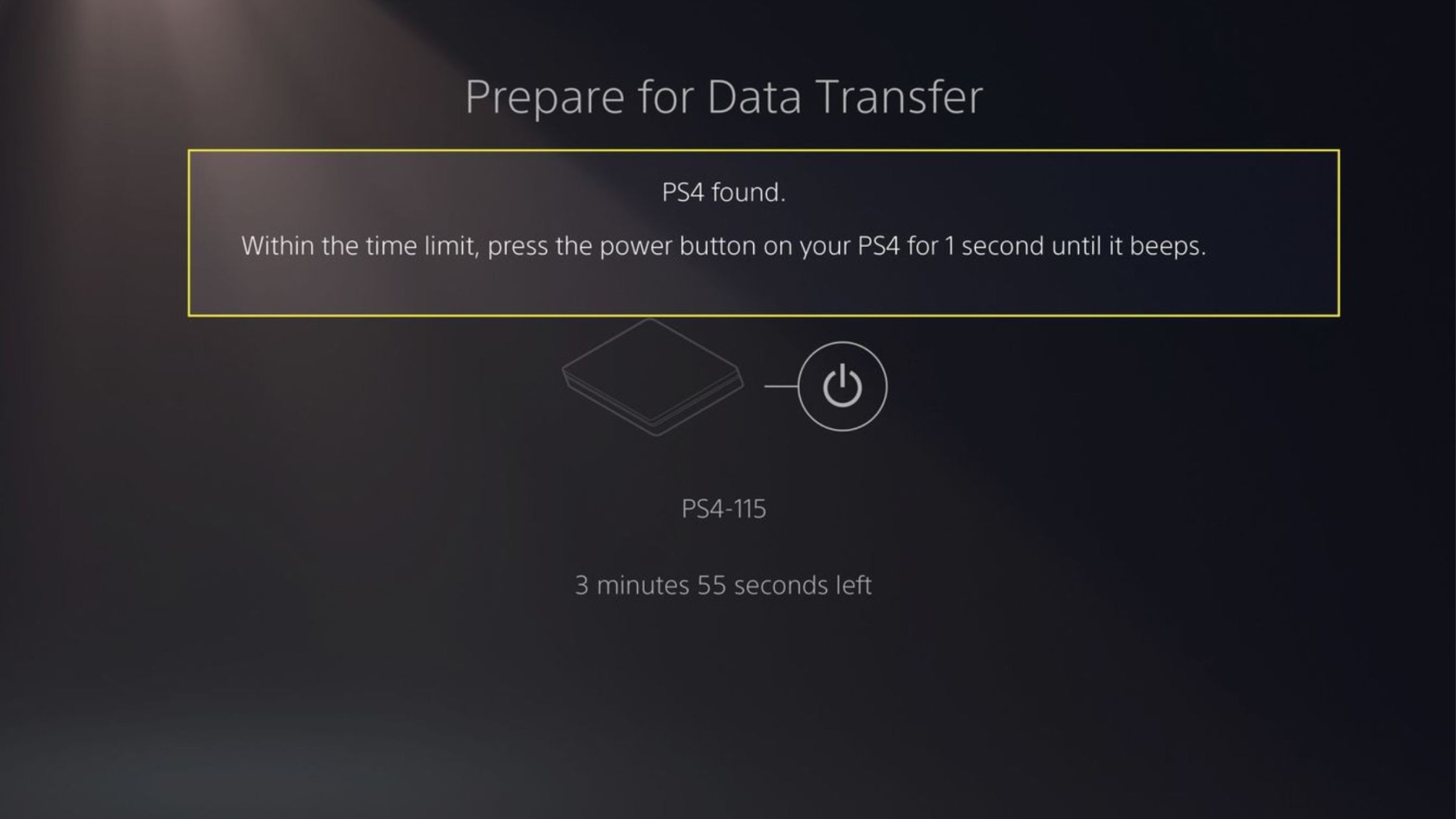
This method beams everything directly over your network—saves, games, settings, the works. On the PS5, go Settings > System > System Software, then Data Transfer. Tap "Continue," and it'll hunt for your PS4. On the PS4, press the power button till it beeps twice (safe mode boot). Confirm the connection pops up on both screens. Pick what to copy: start with saves, restart if needed for games. A progress bar shows time left—my 400GB went in about 90 minutes wired. Don't touch power cords. If it pauses, resume from where it left off. It's mostly set-it-and-forget-it. I love how it grabs even themes and captures.
Wired connections cut wait times in half. Key takeaway: Boot PS4 to safe mode for instant detection.
Backup to USB Drive Method
No great network? Grab a USB drive—250GB or bigger, formatted exFAT on your computer first. On PS4, dive into Settings > System > Back Up and Restore > Back Up PS4. Check boxes for apps, saves, screenshots. Let it chug; my 200GB took overnight. Safely eject, plug into PS5 front USB. Then PS5 Settings > System > Back Up and Restore > Restore PS4 Backup. Select the file—it restores what it can. Not every PS4 game installs fully; redownload those from your library. This way's portable—I took mine on a trip. Reformat after to reuse. Pro tip: Label the drive to avoid mix-ups.
USB shines for spotty Wi-Fi homes. Key takeaway: exFAT format dodges read errors every time.
Cloud Saves: Quick and Wireless
PlayStation's cloud is a lifesaver for saves without cables.
-
From PS4: Settings > Application Saved Data Management > Saved Data in System Storage > Upload to Online Cloud. Pick titles, hit upload—each file's a few minutes.
-
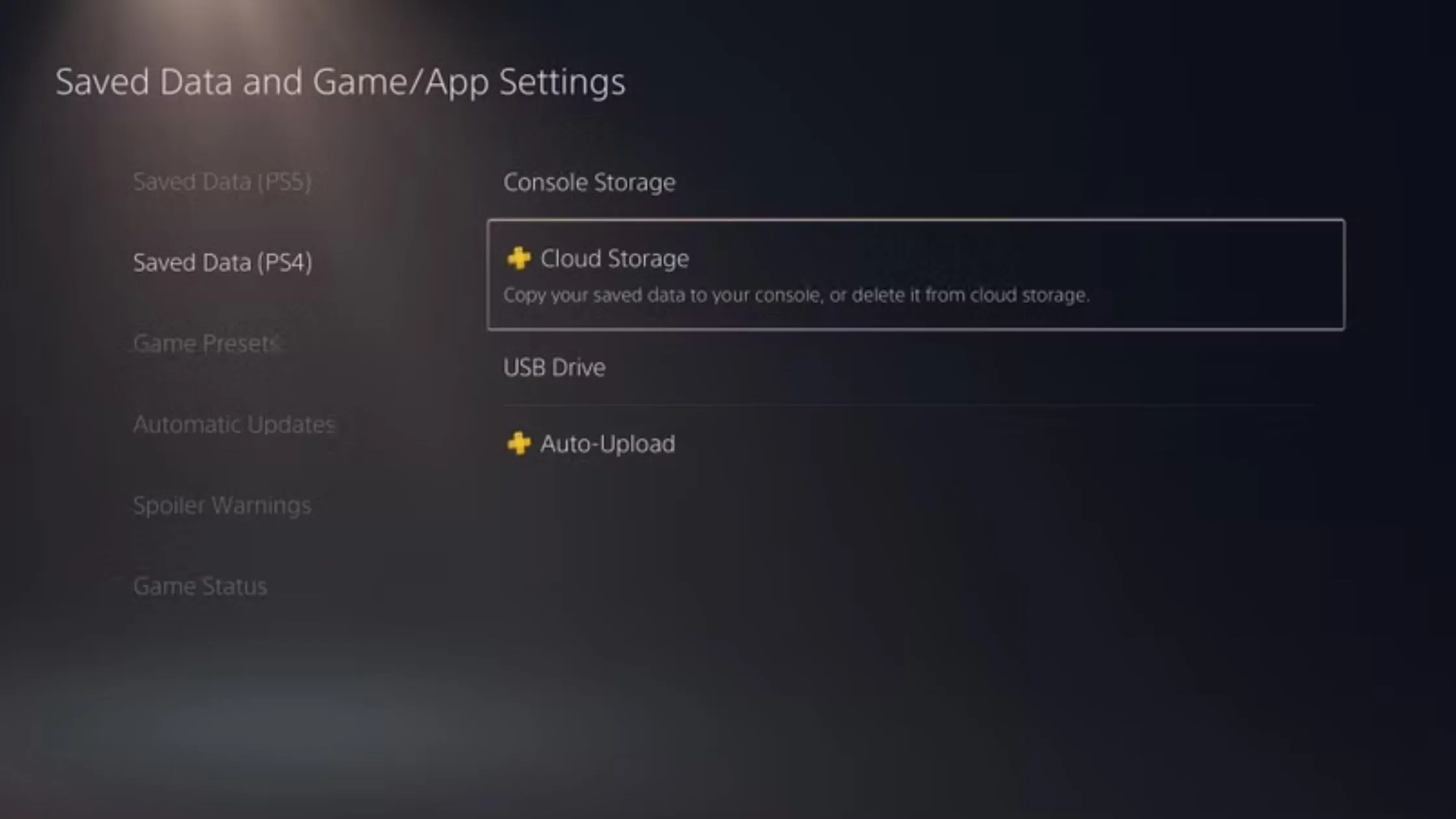
Switch to PS5: Settings > Saved Data and Game/App Settings > Saved Data (PS4) > Cloud Storage > Download. Grab exactly what you need know about transfer ps4 data to ps5.
-
Bonus: It auto-uploads new progress going forward.
-
Works remotely too—I've pulled saves while traveling.
No hardware fuss here. Key takeaway: Cloud covers saves perfectly if you're light on storage.
Handling Games and Big Files
Saves done? Time for the heavy hitters. Physical discs slide into PS5's slot—copy takes 15-40 minutes per game, then play boosted. Digital stuff? PS5 Library > Your Collection > Install. Network transfer pulls full installs if you chose them earlier. Got an external HDD from PS4? Plug to PS5 USB, go Settings > Storage > Extended Storage, move files over. Sort by size to prioritize—those 100GB epics first. PS5's SSD makes loads fly. I always delete temp files post-move via Storage menu. Notification tray tracks it all. If tight on space, shift less-played games to USB later.
Your full library lives again, faster. Key takeaway: Disc copies beat downloads for physical collections.
Fix Glitches Fast
Things snag sometimes—I've chased them all. PS4 not showing? Full restart both, toggle Wi-Fi, ensure same network. Speeds crawling? Ethernet or move closer to router. Error CE-107857? Reupdate software, clear 50GB space. USB "unreadable"? PS4 format it fresh: Devices > USB > Format as exFAT. Cloud sync fails? Log out/in account, check PS Plus active. Test with one small save first. Hold PS4 power seven seconds for rebuild database if desperate. Most fix in under 10 minutes. I keep a notepad for codes now. Patience—don't factory reset lightly.
Quick reboots solve most woes. Key takeaway: Space and network tweaks zap 90% of errors.
Wrap Up and Enjoy
Double-check: Boot a game, load save—progress there? Wipe PS4 backups if sure. PS5 Storage > Games and Apps to organize, enable auto-cloud. Patch all titles for PS5 perks. Charge controllers, tweak DualSense haptics. Play that victory session! My old PS4 became a media player after. Multi-profiles? Recreate them. You're upgraded. Feels like cheating time.
All set for next-level gaming. Key takeaway: Test loads before archiving the PS4.
You May Also Like: How to Connect a PS4 Controller: A Complete Guide for Every Device
FAQs
How long for full PS4 data to PS5 transfer?
Network: 1-6 hours for 1TB, quicker wired. USB/cloud: Saves in 30 minutes, games separate. Depends on your haul.
Can PS4 stay in rest mode during transfer?
Nope—full power only. It beeps to confirm, then idles steady. Rest mode drops the link.
What about PS4 external drives on PS5?
Connect direct, copy via Storage menu. PS5 reads PS4-formatted ones fine for games, not boot.
Does transfer erase PS4 stuff?
Never—it's copy only. PS4 keeps originals till you delete. Extra backup anyway.