
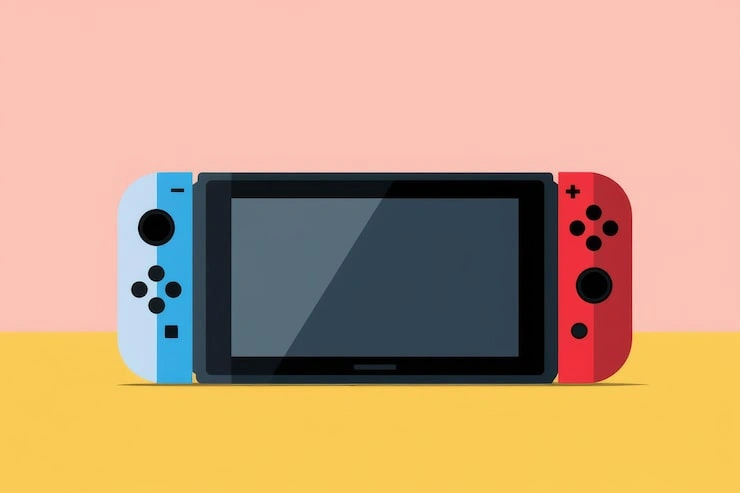
How To Switch Nintendo Account On Switch? Ever felt stuck on your Nintendo Switch because the wrong account is loaded up? Switching your Nintendo account on the Switch is simpler than you think. It lets you jump between profiles for games, saves, and online stuff without hassle. Let's walk through it step by step.
Easy Ways to Switch Nintendo Accounts on Your Switch

User profiles and Nintendo accounts are two different things on your Switch. A user profile is like a personal space on the console. It holds your icon, nickname, save data, and settings. Up to eight profiles fit on one Switch.
A Nintendo account links to one profile. It handles digital buys, online play, and subscriptions. Only one account per profile, and once linked, you can't unlink without deleting the profile. This setup keeps things organized, especially in families.
Many folks mix them up at first. Profiles let quick switches. Accounts control what you access. Knowing this makes everything smoother. Think of profiles as rooms in a house. Accounts are the keys to lockers inside.
Create a New User Profile
Start by adding a fresh profile for your new account. From the home screen, hit the gear icon for System Settings. Scroll down to Users, then pick Add User.
Choose an icon—tap More Options for extras or make a Mii. Enter a nickname that others might see online. Don't use real names or personal info. Confirm, and you're set.
Now link your Nintendo account. Pick Sign In and Link if you have one. Enter email and password. Double-check details before hitting Link—it's permanent. Skip for now with Later if needed. You'll return to settings. Easy, right? This takes under two minutes.
Read Also: Nintendo Switch Battery Life Improvement Tips
Link Your Nintendo Account
Linking ties your online account to the profile. After creating the profile, go back if you skipped. In System Settings under Users, select the profile. Choose Switch Nintendo Account On Switch.
Sign in with email or ID and password. A screen shows account info—verify it's yours. Select Link. You'll get a confirmation popup. Done!
New to accounts? Pick Create a new account. Follow prompts to make one on a phone or PC first, then sign in on Switch. Optional email code adds security. Pro tip: Use a strong password. This unlocks eShop, friends, and cloud saves.
Switch Between Profiles Easily
Switching profiles happens fast from home. Press the Home button if in a game. Hover over the game icon—you'll see the current profile badge.
Close the software: Tap the X or select Close Software from the bottom rail. Confirm Close. Relaunch the game or app. A picker shows all profiles. Joystick or touchscreen to your choice, press A.
From the top-left user icon on home, select another directly. No need to close apps always. Games pause where you left off per profile. Great for family play sessions. Practice once—it's muscle memory after.
Manage Primary Console Settings
Primary console lets all profiles play your digital games and subs. It's auto-set first time you hit eShop with an account.
To change: Open eShop, tap your icon top-right. Scroll to Pass-enabled Console. Select Deregister, enter password, confirm twice. Next eShop login sets new primary.
Only one primary per account across consoles. Others are non-primary—only your profile accesses full features there. Deregister via web too: accounts.nintendo.com, Shop Menu, Deregister. Key for sharing games smartly.
-
Check primary status in eShop account info before changes.
-
Deregister old consoles if lost—prevents access issues.
-
Set primary where most play happens for best sharing.
Handle Game Sharing Across Accounts
Games bought on one account play on primary console for everyone. Non-primary? Only the owner profile plays, needs internet sometimes.
Multiple profiles with accounts? Each buys own games or shares via primary. Family groups help—up to two extras per main account for subs.
Switch accounts mid-game? Close and relaunch as above. Saves stay per profile. No sharing saves between accounts—Nintendo keeps data separate for privacy.
-
Buy on primary for full access.
-
Test sharing: Launch friend's game on your profile.
-
Cloud backups per account—enable in settings.
Common Troubleshooting Tips
Login fails? Restart Switch: Hold power button 5 seconds, pick Restart. Check system updates in Settings > System > System Update. "Account unusable"? Update software, sign out/in. If stuck, delete profile (backs up saves first) and remake. Can't add user? Max eight profiles—delete unused via Users > Delete User. Unlinks account safely. Password issues? Reset on Nintendo site. eShop errors post-switch? Deregister primary, relog. Internet stable? Airplane mode toggle fixes glitches. Patience—most resolve quick.
You May Also Like: Switch Pro Controller Drift Repair Service: What You Need to Know
Frequently Asked Questions
Can I have two Nintendo accounts on one profile?
No. Each profile links one account max. Make separate profiles for multiples.
Does switching profiles delete saves?
No, saves tie to profiles. Back up to cloud via account for safety.
How do I transfer a profile from old Switch?
Use System Settings > Users > Import User Data. Needs both consoles online.
What if I forget my account password?
Reset on Switch Nintendo Account On Switch with email. Recover sign-in info there too.
Can others play my games without my account?
Yes, if their console is your primary. Set it via eShop