
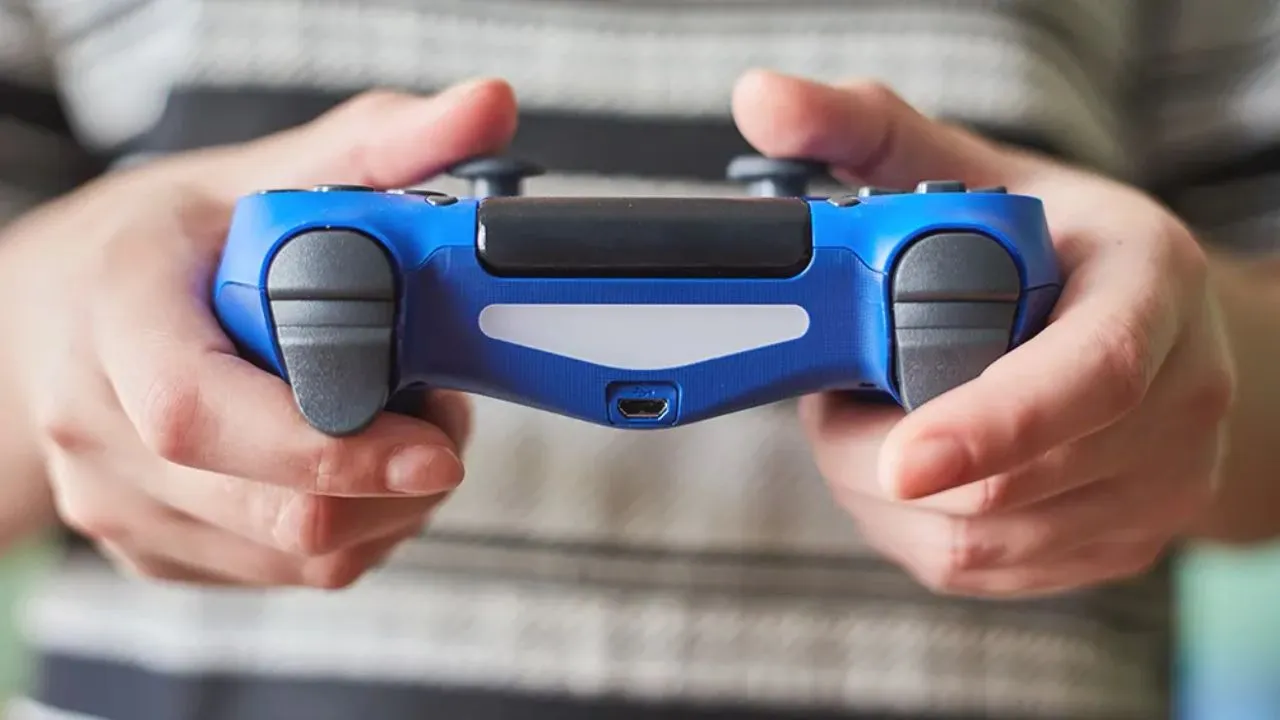
If your PS4 controller won't connect, first try resetting it by pressing the small reset button on the back for 5 seconds, then reconnect it using a USB cable. If that doesn't work, try syncing it in Safe Mode or testing a different cable and how to fix ps4 controller not connecting.
Why Your PS4 Controller Stops Connecting?
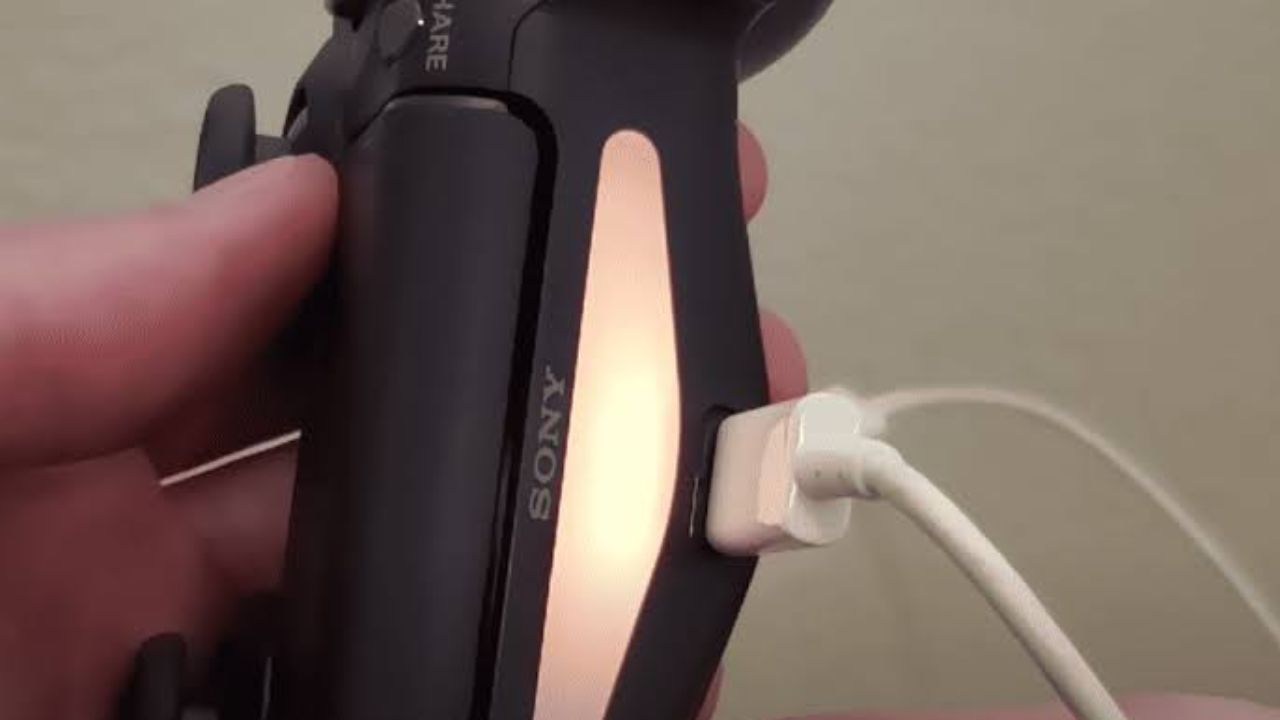
Before diving into fixes, it helps to understand why this happens. The DualShock 4 connects to your PS4 in two ways: through a USB cable (for syncing and charging) and via Bluetooth (for wireless play). When either of these connection methods fails, your controller appears "dead" even if it's charged.
Common causes include:
- Bluetooth pairing data corruption – The PS4 and controller lose their handshake.
- Dead or faulty USB cable – Many cables are charge-only and don't carry data.
- Controller firmware glitch – A temporary software freeze inside the controller.
- PS4 Bluetooth module issues – Less common, but possible hardware failure.
- Interference from other devices – Wi-Fi routers, USB 3.0 devices, or other Bluetooth signals.
Understanding the cause helps you pick the right fix faster.
Fix 1: Reset Your DualShock 4 Controller
This is the most effective first step and solves the majority of connection problems.
- Turn off your PS4 completely (not rest mode).
- Flip your controller over and locate the small reset button near the L2 trigger — it's inside a tiny hole.
- Use a paperclip or pin to press and hold the button for 5 seconds.
- Release it. The controller's light bar should flash briefly.
- Connect the controller to the PS4 using a USB cable.
- Press the PS button to sync it.
If the light bar turns solid blue and stays on, you're connected.
Read Also: How To Transfer Ps4 Data To Ps5 Step By Step
Fix 2: Use the Right USB Cable
Not all USB cables are created equal. Many cheap cables are charge-only and cannot transfer data — which is required for syncing.
What to check:
- Use the original Sony cable that came with your console if possible.
- Try a different cable that you know transfers data (e.g., one that syncs your phone).
- Avoid damaged, bent, or frayed cables.
- Make sure the cable is fully inserted into both the controller and the PS4 port.
Pro tip: If your controller charges but won't sync, the cable is almost certainly the problem.
Fix 3: Try a Different USB Port
The PS4 has two USB ports on the front. Sometimes one port fails or provides inconsistent power.
- Unplug the cable from the current port.
- Plug it into the other front USB port.
- Press the PS button again.
If you have a PS4 Pro or a USB hub, try connecting directly to the console instead of through the hub.
Fix 4: Sync the Controller in Safe Mode
Safe Mode forces the PS4 to rebuild its connection settings. This is useful when the normal sync process fails.
Steps:
- Turn off the PS4 completely (hold the power button until it beeps twice).
- Hold the power button until you hear a second beep (about 7 seconds).
- Connect the controller via USB.
- Press the PS button on the controller.
- Select "Restart PS4" from the Safe Mode menu.
Once the console restarts, the controller should be recognized.
Fix 5: Re-Pair the Controller via Bluetooth
If you've connected the controller to another device (like a PC or phone), it may be trying to connect to that instead.
- On your PS4, go to Settings > Devices > Bluetooth Devices.
- If you see your controller listed, select it and choose "Forget" or "Delete".
- Turn off Bluetooth on any nearby devices (phones, laptops, tablets).
- Reset the controller (see Fix 1) and reconnect via USB.
Fix 6: Check for Interference
Bluetooth signals can be disrupted by:
- Wi-Fi routers (especially 2.4GHz networks)
- USB 3.0 hard drives and hubs
- Microwaves and cordless phones
- Other Bluetooth controllers
What to do:
- Move your PS4 away from your router.
- Unplug USB 3.0 devices temporarily.
- Turn off other Bluetooth devices in the room.
- Try connecting the controller while sitting closer to the console.
Fix 7: Test the Controller on Another Device
To determine whether the problem is the controller or the PS4:
- Connect the controller to a PC via USB or Bluetooth.
- If it works on PC, the issue is likely your PS4's Bluetooth module.
- If it doesn't work on PC either, the controller itself may be faulty.
This is a quick diagnostic step that saves time.
Fix 8: Update the Controller Firmware
Sony occasionally releases firmware updates for the DualShock 4. An outdated firmware can cause connection issues.
- Connect the controller to your PS4 via USB.
- Go to Settings > Devices > Controllers.
- Check for available updates.
If no update is available, your firmware is current.
Fix 9: Restart the PS4 in Safe Mode and Rebuild Database
A corrupted database can interfere with device recognition.
- Enter Safe Mode (see Fix 4).
- Select "Rebuild Database".
- Wait for the process to complete (this can take several minutes).
- Reconnect your controller.
This won't delete your games or saves — it only reorganizes system data.
You May Also Like: Should I buy a PS5 or wait for PS6?
Fix 10: When It's a Hardware Problem
If none of the above fixes work, you may be dealing with:
- A faulty Bluetooth module inside the PS4.
- A damaged USB port on the console.
- A dead battery or charging circuit in the controller.
Your options:
- Try a different controller to confirm the PS4 is the problem.
- Contact PlayStation Support for repair or replacement.
- For a temporary workaround, use a wired connection permanently if the Bluetooth is dead.
Frequently Asked Questions
Why does my PS4 controller flash white and not connect?
A flashing white light usually means the controller is trying to sync but failing. Reset the controller and reconnect via USB.
Why does my controller only work when plugged in?
This indicates a Bluetooth pairing failure. Re-pair the controller or check for interference.
Can I use a PS5 controller on PS4?
Yes, the DualSense works on PS4 for most games, but some features may not be supported.
How do I know if my controller battery is dead?
If it won't charge or hold a charge, the battery may need replacement. Try a different cable first.
Will resetting my controller delete my settings?
No. Resetting only clears the controller's pairing memory, not your game data or console settings.
Final Thoughts
Most PS4 controller connection issues can be fixed in under five minutes with a simple reset and a reliable USB cable. Start with Fix 1 and work your way down the list. If you've tried everything and the controller still won't connect, it's likely a hardware issue that requires professional repair or a replacement controller.