
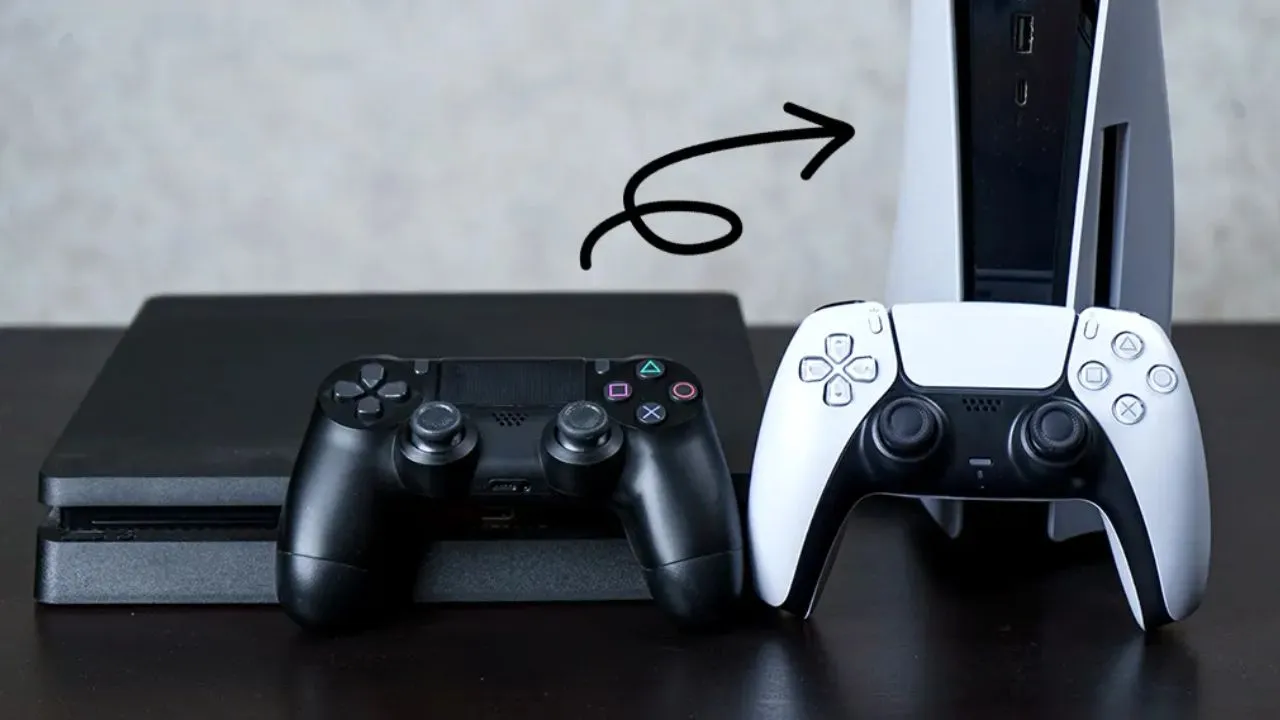
Getting a new PlayStation 5 is a big moment. You are excited about the new games, the faster loading times, and the better graphics. But there is one question that comes to mind for every person who has spent hours and hours on their PS4.
How do I take my game progress with me?
You have worked hard to finish those tough levels. You have unlocked special items. You have completed long stories. Losing all that progress is not something anyone wants. The good news is that Sony has made it easy to move your save data from your old PS4 to your new PS5. You just need to know the how to transfer ps4 save data to ps5.
This guide will show you every method to transfer your PS4 save data to your PS5. We will explain each step in simple words. No confusing terms. No tricky language. Just clear instructions that anyone can follow.
Before You Start the Transfer
Before we talk about the different ways to move your data, there are a few important things you must do first. These steps will make sure the transfer goes smoothly and you do not lose anything.
Keep Your PlayStation Network Account Ready
This is the most important thing to remember. Your PS4 and your PS5 must be signed in to the same PlayStation Network account. This is the account you use to buy games, play online, and save your progress. If you use different accounts on each console, the transfer will not work at all .
If you have multiple accounts on your PS4, you can transfer data for each one. But you have to do them one at a time. You cannot move everything from all accounts together.
Update Both Consoles
Before you start any transfer, check that both your PS4 and PS5 have the latest system software. Old software can cause problems during the transfer. It might stop halfway or even damage your save files.
On your PS4, go to Settings > System Software Update and check for the latest version. On your PS5, go to Settings > System > System Software > System Software Update and Settings to do the same thing .
Sync Your Trophies
Trophies are a big deal for many gamers. They show your achievements and progress. Before you move your data, make sure your trophies are saved to the PlayStation Network.
On your PS4, go to the Trophies section from the main screen. Press the Options button on your controller. Then choose Sync with PlayStation Network . This will save all your trophies online. Even if something goes wrong with the transfer, your trophies will stay safe.
Important Warning
Sony says you should never turn off either console during the data transfer . If the power goes off or you unplug a console, your data can get damaged. You might lose your save files forever. Make sure both consoles are plugged in and stable before you start.
Read Also: How To Transfer Ps4 Data To Ps5 Step By Step
Method 1 – Transfer Using Wi-Fi or LAN Cable
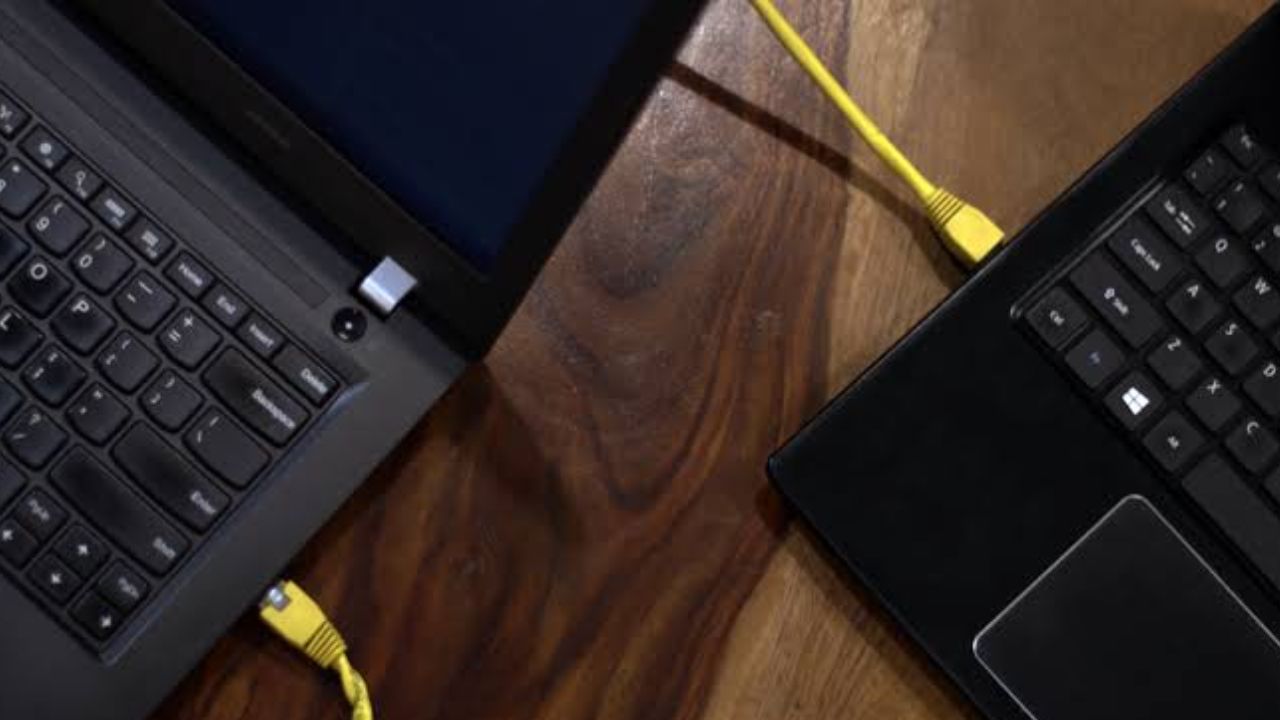
This is the most common way to move your PS4 data to your PS5. It is the method Sony suggests during the initial setup of your new console. This method can move everything including your save data, game files, settings, and even user accounts.
How This Method Works
When you use this method, your two consoles talk to each other through your home network. They send data back and forth until everything is copied. It is like moving files from one computer to another using the same Wi-Fi.
You can use this method in two ways. The first way is to connect both consoles to your home Wi-Fi network. The second way is to connect both consoles to your router using LAN cables .
Which One Is Faster?
If you want speed, you should use LAN cables. Connecting both your PS4 and PS5 to your router with Ethernet cables is much faster than Wi-Fi . The data moves through the cables without any interference. There are no walls or other devices slowing it down.
If you cannot use LAN cables, you can connect both consoles to Wi-Fi. But be ready to wait. The Wi-Fi transfer can take a very long time. Some people have reported that moving a large game library over Wi-Fi can take hours or even days .
Step-by-Step Instructions
Here is how to transfer your data using your network.
Step 1 – Turn on both your PS4 and PS5. Make sure both consoles are connected to the same network. If you are using Wi-Fi, connect them both to your home Wi-Fi. If you are using LAN cables, plug each console into your router.
Step 2 – On your PS5, go to Settings > System > System Software > Data Transfer > Continue .
Step 3 – Your PS5 will search for your PS4 on the network. When it finds your PS4, select it.
Step 4 – You will see a message on your PS5 that says "Prepare for Data Transfer". When you see this message, press and hold the power button on your PS4. Keep holding it until you hear a beep .
Step 5 – Now your PS5 will show you a list of data you can transfer. You can choose what to move. You can select your save data, game files, apps, and settings. Pick what you want .
Step 6 – Look at the estimated transfer time on the screen. Then select Start Transfer to begin.
Step 7 – Your PS5 will restart during the transfer process. This is normal. Do not worry. The transfer will continue in the background after the restart .
How Long Does It Take?
The time depends on how much data you are moving and how you are connected.
-
LAN Cable Transfer – Moving about 800GB of data over LAN cables can take just under 2 hours . This is the fastest way.
-
Wi-Fi Transfer – This can take much longer. For a small amount of data, it might take 30 minutes. For a large library of games, it can take several hours. In some cases, it can even take more than a day .
One Important Thing to Know
If you have an external drive connected to your PS4, that data will not move using this network method . But you can just plug that same external drive directly into your PS5. You will be able to play those games right away. However, you will not get the super-fast loading times that come from the PS5 internal storage.
Method 2 – Transfer Using a USB Drive
This is the second most popular way to move your save data. It is a simple and reliable method. Many people prefer this because it does not depend on your internet speed. It also works great if you have already sold your PS4 or you are at a friend's house.
What You Need
To use this method, you need a USB drive. This can be a USB flash drive or an external hard drive. Make sure it has enough space for your save data. Game save files are usually not very big. But if you are moving saves from many games, you might need more space.
Your USB drive must be formatted as FAT32 or exFAT. The PS4 and PS5 cannot read other formats like NTFS .
How This Method Works
This is a two-step process. First, you copy your save data from your PS4 to the USB drive. Second, you plug that USB drive into your PS5 and copy the data from the drive to your new console.
Step-by-Step Instructions
On Your PS4
Step 1 – Plug your USB drive into one of the USB ports on your PS4.
Step 2 – Go to Settings > Application Saved Data Management > Saved Data in System Storage > Copy to USB Storage Device .
Step 3 – You will see a list of your games. Select the save data you want to copy to the USB drive.
Step 4 – Press Copy and wait for the process to finish. When it is done, remove the USB drive from your PS4.
On Your PS5
Step 1 – Plug your USB drive into one of the USB ports on your PS5.
Step 2 – Go to Settings > Saved Data and Game/App Settings > Saved Data (PS4) > USB Drive .
Step 3 – You will see the save data from your USB drive. Select the files you want to copy to your PS5.
Step 4 – Press Copy to Console Storage and wait for it to finish.
How Long Does It Take?
This method is usually very fast. The time depends on the speed of your USB drive and the amount of data. But generally, it takes about 30 minutes or less for most users . This makes it much faster than Wi-Fi transfers for moving save data.
Method 3 – Transfer Using PlayStation Plus Cloud Storage
If you have a PlayStation Plus subscription, this is the most convenient way to move your save data. The cloud stores your save files online. You can access them from anywhere as long as you have an internet connection.
What Is PlayStation Plus Cloud Storage?
PlayStation Plus members get cloud storage as part of their subscription. This is an online space where you can upload your save data. The cloud keeps your files safe even if something happens to your console. You can store up to 100GB of PS4 save data and 100GB of PS5 save data in the cloud .
How This Method Works
This method also has two steps. First, you upload your save data from your PS4 to the cloud. Second, you download that data from the cloud to your PS5.
Step-by-Step Instructions
On Your PS4
Step 1 – Go to Settings > Application Saved Data Management > Saved Data in System Storage > Upload to Online Storage .
Step 2 – Select the game save files you want to upload to the cloud.
Step 3 – Press Upload and wait for the process to finish.
You can also turn on Auto-Upload. This feature automatically uploads your save data to the cloud whenever you finish playing a game. This way, your latest progress is always backed up .
On Your PS5
Step 1 – Go to Settings > Saved Data and Game/App Settings > Saved Data (PS4) > Cloud Storage .
Step 2 – You will see your save data in the cloud. Select the files you want to download to your PS5.
Step 3 – Press Download to Console Storage and wait for it to finish.
How Long Does It Take?
Cloud transfer time depends on your internet speed. Uploading and downloading can take anywhere from 20 minutes to over an hour each way . If you have a fast internet connection, this method is very quick.
Which Method Should You Choose?
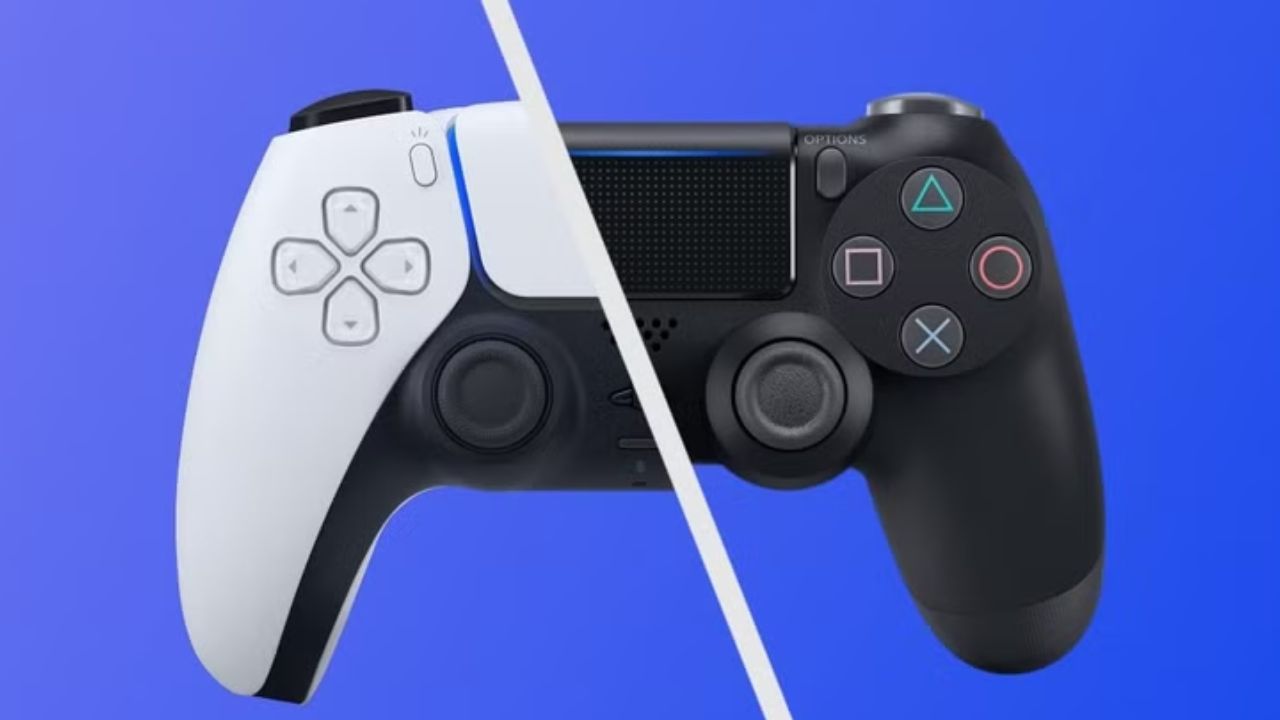
Now you know about all three methods. But which one is best for you? Here is a simple guide to help you decide.
Choose Network Transfer If
- You have both consoles in the same home.
- You want to move games, settings, and accounts along with your save data.
- You can connect both consoles to your router with LAN cables.
- You have a lot of data to move and want the simplest setup.
Choose USB Drive Transfer If
- You do not have a PlayStation Plus subscription.
- Your internet connection is slow or unreliable.
- You want to move only your save data, not full games.
- You already sold your PS4 or you are using a friend's console.
- You want a fast and simple method without depending on the network .
Choose Cloud Storage Transfer If
- You have a PlayStation Plus subscription.
- You already use cloud storage to back up your saves regularly.
- You have a fast internet connection.
- You do not have access to your PS4 anymore.
- You want the most convenient method that does not need any cables or drives.
You May Also Like: Should I buy a PS5 or wait for PS6?
Important Things to Keep in Mind
There are some special situations you should know about. These can affect whether your transfer works or not.
PS4 to PS5 Save Compatibility
Not all PS4 game saves work with the PS5 version of the same game. Some games support cross-generation saves. This means your PS4 save will work with the PS5 version. Other games do not support this. Your save will only work if you play the PS4 version on your PS5 .
For example, if you have a PS4 save for a game and you buy the PS5 upgrade version, your save might not work. The game developer decides whether to allow this transfer. Always check the game's details before you buy the PS5 version.
What If Your Save Is Not Recognized?
Sometimes, a PS4 save file is not recognized on the PS5. This usually happens because the game has a special transfer system of its own. Some games, like Spider-Man Remastered, need you to do an extra step inside the game itself . Check the developer's website or the game's menu for special transfer options.
Multiple Accounts and Users
You can transfer data for multiple PlayStation Network accounts. But you can only transfer one account at a time. You cannot move data for all your accounts together in one transfer . If you have several accounts on your PS4, you will need to repeat the transfer process for each one.
PS5 Digital Edition and Disc Games
This is important if you have the PS5 Digital Edition. This version does not have a disc drive. If you have PS4 games on disc, you cannot play them on the PS5 Digital Edition . Even if you transfer your save data, you will not be able to use it without the game itself.
Transferring Game Saves vs Game Files
Remember that game saves and game files are different things. Game saves are the small files that hold your progress. Game files are the large game installations.
The network transfer can move both games and saves . The USB drive and cloud methods only move saves. If you want to move actual game files without re-downloading them, you must use the network transfer or an external hard drive.
Frequently Asked Questions
Can I transfer my PS4 save data after I already set up my PS5?
Yes, you can. The PS5 offers data transfer during the initial setup. But you can also do it later. Just go to Settings > System > System Software > Data Transfer on your PS5. The process is the same as doing it during setup .
Will I lose my PS4 save data after transferring?
No. The transfer creates a copy of your save data on your PS5. Your PS4 still keeps its original save files. You are not deleting anything from your PS4 .
Do my trophies transfer with the save data?
Trophies are linked to your PlayStation Network account. They do not depend on the save data. As long as you sign in with the same account on your PS5, all your trophies will be there .
Do I need PlayStation Plus for all transfer methods?
No. Only the cloud storage method needs PlayStation Plus. The network transfer and USB drive methods work without any subscription .
What happens to game time data or playtime statistics?
These are usually not transferred . Some games have their own internal statistics that might sync. But the console does not track this data across consoles.
Can I transfer data from PS5 back to PS4?
No. The transfer only works one way. You cannot move PS5 save data back to a PS4 console . Once you move to PS5, your saves are for that console only.
Conclusion
Moving your PS4 save data to your PS5 is not complicated. Sony has given you three clear ways to do it. You can use your home network, a USB drive, or the PlayStation Plus cloud.
Each method has its own strengths. The network transfer is great for moving everything at once. The USB drive is perfect if you want a fast and reliable way without internet. The cloud storage is the most convenient if you have PlayStation Plus.
The most important thing is to prepare before you start. Make sure both consoles are updated. Sign in with the same account. Sync your trophies. And never turn off the consoles during the transfer.